
 Popup Divi Supreme Pro extension
Any Divi layout. Now a popup.
Visitors see what you design in the Divi Library. Open it on click, hover, scroll, page load or exit intent.
New Divi 5 extensions, every month.
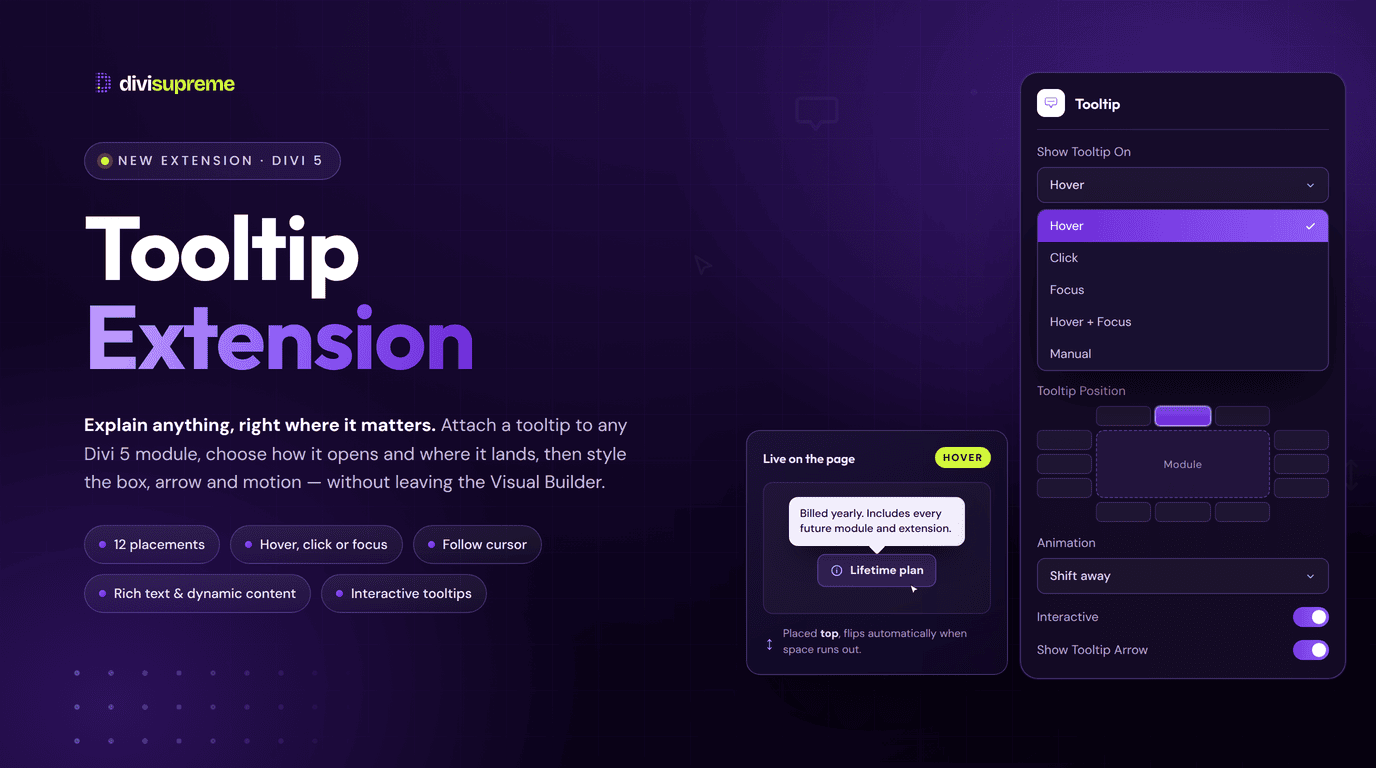
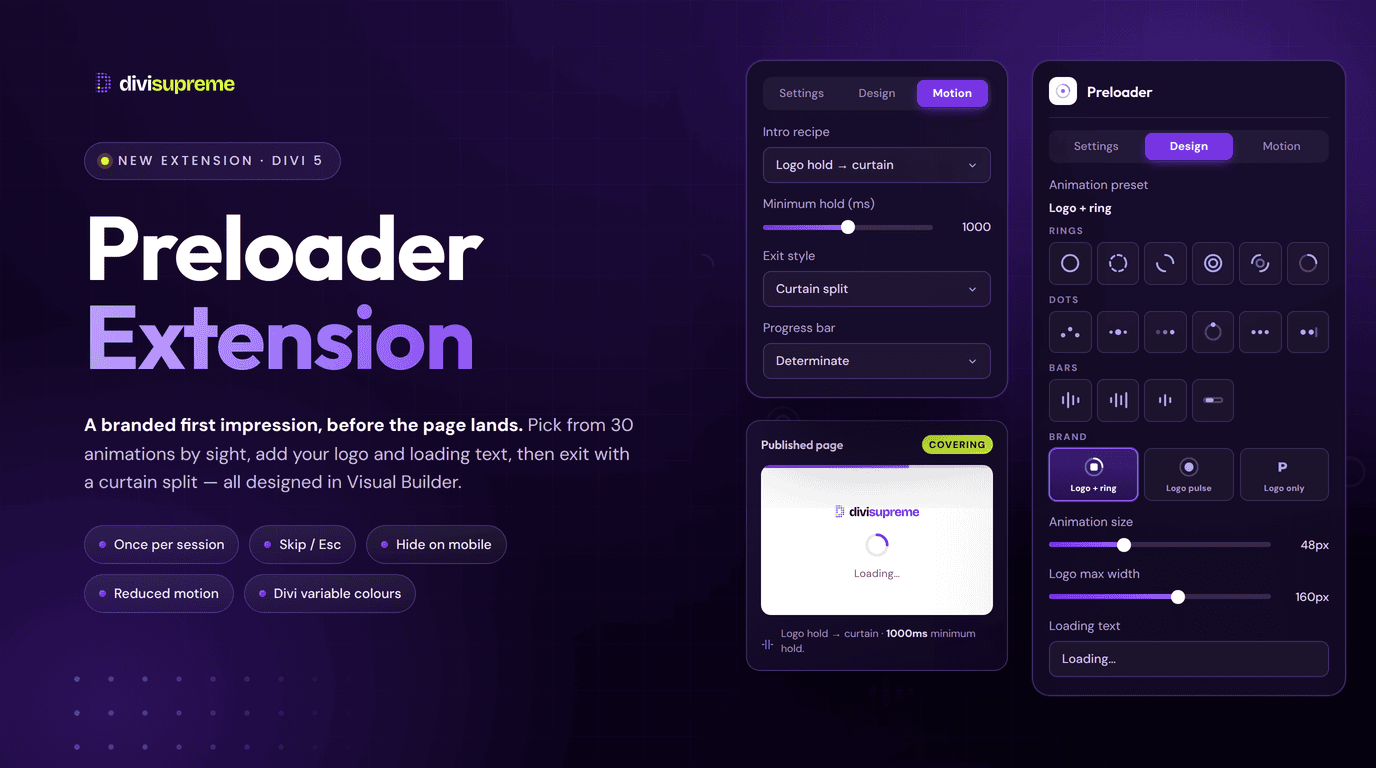
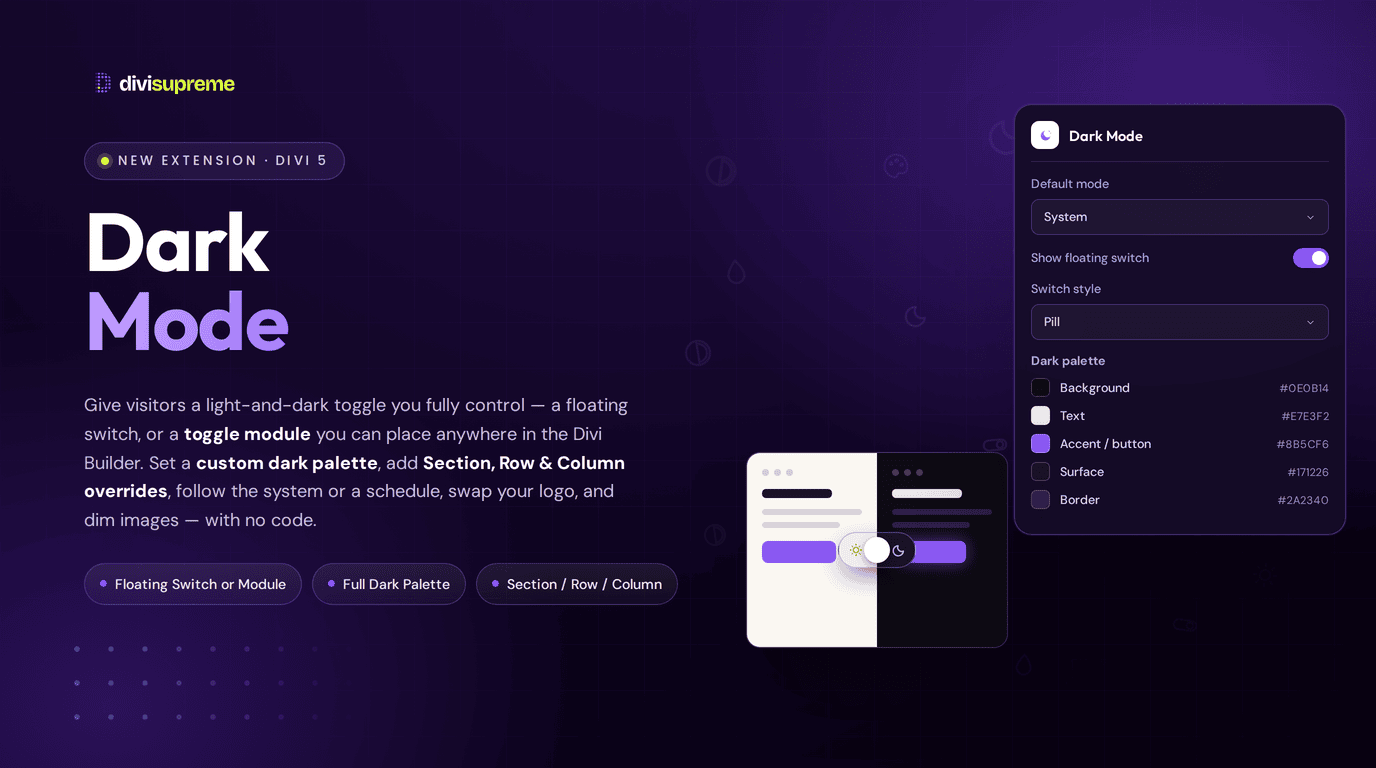
Tooltip, Preloader, Dark Mode and more, built into Divi Supreme Pro.

8
ways to open a popup
5
WooCommerce cart events
43 + 32
entrance and exit animations
3
breakpoints for every design setting
Three steps. All inside Divi.
Design the popup, set it up in the Popup Customiser, then attach it to any module. It is a saved Divi layout, so it already uses your fonts, colors and modules.
01
Design it as a layout
Build the popup in the Visual Builder with any Divi module and save it to the Divi Library. That layout is the popup.
02
Set it up in the Popup Customiser
Open the layout's Popup Customiser. Under Settings, turn on Enable Popup and pick the type and trigger. Under Design, style the overlay, size, close icon and animations.
03
Attach it to any module
In any module's Advanced tab, open the Popup group, turn on Use Popup and select your layout. Preview it on the page, then publish.
What you see is what you get.
Design the popup in the Divi Library, preview it on your page in the builder, then publish. Visitors see exactly what you previewed.
Any Divi module inside
Forms, video, images, Divi Supreme modules. If Divi can build it, it can be a popup.
Your global colors and fonts
The popup uses your site's Divi design system, so it matches every page.
Preview before you publish
Modules that open a popup carry a Popup badge in the builder. In Wireframe view, click Preview to open it on the page you are editing.
Same markup, same CSS
The builder preview uses the same popup markup and styles as the live page, responsive settings included.

The Popup badge in the builder
Any module with a popup shows the badge. Click Preview to open the popup on your page before you publish.

The Popup Customiser
Settings and Design tabs, opened from your Divi Library layout.
Animate it in. Animate it out.
43 entrance and 32 exit animations, each with its own duration and delay. Pick a pair and press play.
Animation In Delay and Animation Out Delay hold the start of each one. Defaults: fadeIn at 0.4s, Fade Out at 0.25s.
Size it, place it, per device.
Save a section, row or module as the popup, then set alignment, overlay and the close button for Desktop, Tablet and Phone in the Design tab.

Position
Absolute locks page scrolling, like a classic modal. Fixed pins the popup while the page scrolls.
Close button
Pick the icon, size, color and background. Six positions, or Custom with top and left offsets.
Box styling
Background color, padding, border and box shadow, each set per breakpoint.
Sizing
Popup Max Width and Max Height per breakpoint. 600px wide by default.
Eight ways to open a popup.
Five popup types and four module triggers. Use the one that matches what the visitor is doing.
Module trigger
Click
The popup opens when the visitor clicks the module.
Cards, buttons, images
Module trigger
Hover
It opens as the pointer moves over the module.
Previews, quick info
Module trigger
Enter viewport
It opens when the module scrolls into view.
Content upgrades, offers
Module trigger
Leave viewport
It opens when the module scrolls out of view.
Reminders after a section
Target by CSS Class/ID
Class or ID
Any element with your class or ID opens it, menu items included.
Header and menu links
Appear on Page Load
Page load
It opens when the page loads, after the Open delay you set.
Announcements, notices
Appear on Exit Intent
Exit intent
It opens when the cursor heads for the tab bar.
Lead capture, last offers
WooCommerce
Cart events
Added to Cart, Removed from Cart, Cart Updated, Coupon Applied or Coupon Removed.
Cross-sells, cart rescue
Show it once. Not on every page.
"How often opens are allowed" limits a popup per browser session, day, week or month, so a good offer never turns into a nuisance.
Shown 2 times in 6 page views. Once on Monday, once on Thursday.
Set Max opens in that period from 1 to 100. Pair it with Popup Appear (Always, After X days or After X hours) and Auto Close Popup.
Close it the way you want
Pick any mix of close triggers, close it automatically after a set time, or hide the close button.
Close Popup Trigger
Overlay (backdrop) click
Escape key
Custom close icon
Custom CSS element
Auto Close Popup
Set Close after X seconds and the popup closes itself, with no countdown shown to the visitor. 20 s by default. Good for notices and flash offers.
Skip the extra popup plugin.
Most popup plugins bring their own editor, styles and settings. This one uses Divi's.
A separate popup plugin
Divi Supreme Popup
Where you design
Its own editor, outside Divi
The Divi Visual Builder
What visitors see
Can differ from the editor
Exactly the layout you built
Fonts and colors
Set them again by hand
Your Divi global colors and fonts
What goes inside
The plugin's own blocks
Any Divi or Divi Supreme module
Page weight
Often loads on every page
Switch it off and nothing loads
Cost
Another yearly license
Included with 70+ modules
Four popups worth stealing.
Set-ups agencies use on client sites every week.
The exit newsletter signup
Offer your tips newsletter as the visitor heads for the tab bar.
- Type
- Appear on Exit Intent
- Layout
- Row
- How often
- Per calendar week
Latest guides
Get one Divi tip a month
Short guides to new extensions like Tooltip, Preloader and Dark Mode, sent to your inbox.
One email a month.No thanks
The menu booking form
A "Book a call" menu item opens your booking form, on every page.
- Type
- Target by CSS Class
- Layout
- Row
- How often
- Unlimited
Free 20-minute call
Talk to the Divi Supreme team
Pick a time. We will send a calendar invite.
Times shown in your time zone
The add-to-cart cross-sell
Offer a matching product the moment something lands in the cart.
- Type
- WooCommerce
- Action
- Added to Cart
- How often
- Per browser session
Added to cart: Divi Supreme Pro
Add mega menus for $39/yr?

Supreme Mega Menu
Mega menus from Divi layouts
$39
The mid-article offer
A coupon card appears when the reader reaches a module halfway down the post.
- Type
- Module trigger
- Trigger
- Enter Viewport
- How often
- Per browser session
Reader offer
20% off your first year
SUPREME20
Switch it on. One click.
Divi Popup ships inside Divi Supreme Pro. Turn it on from the Divi Supreme Settings screen, next to the other 15 extensions.
-
Open Divi Supreme SettingsIn WordPress, go to Divi Supreme, then Extensions.
-
Switch on Divi PopupIts card shows On. Turn off any extension you do not use.
-
Turn a Divi Library layout into a popupOpen a layout from the Divi Library in the Visual Builder. In the Popup Customiser, switch on Enable Popup.
Divi Supreme Settings
This is where you can enable Divi Extensions.
 Page Tour
 TooltipDivi Popup
 Line Hover Animation
 Mouse Parallax
 Image Parallax
 Custom Cursor
 Preloader
 Dark Mode Toggle
 Icon Libraries
 Mask & Pattern Library
 Divi Library Widget
 Copy to Clipboard
 Client Handoff
 Password Protection
 Contact Form Pro
One popup idea in your inbox, every month.
Divi Supreme tips, new extension releases and free layouts. Short, practical, written for people who build Divi sites.
One email a month. Unsubscribe in one click.
Popups are included in Divi Supreme Pro.
The Popup extension ships inside Divi Supreme Pro, with 70+ modules and 15 more extensions. One plugin, unlimited sites.
Divi Supreme Pro
$79/ year
Updates and support for 12 months. Renews at 30% off.
- The Popup extension
- 70+ Divi modules and 15 more extensions
- Unlimited sites, client work included
- Divi 5 native, Divi 4 supported
Save 31%
Supeme Bundle, 4 plugins
$129first year$186
Divi Supreme Pro plus three more plugins. Renews at $90/yr.

Divi Supreme ProIncludes Popup
Supreme Mega MenuMenus from Divi layouts

Supreme Maps ProGoogle Maps and Leaflet

Supreme AI WriterText, images, stock media
4.9 rated, on 350,000+ Divi sites14-day money-back guaranteeUnlimited sites on every planEach plugin keeps its own license key
Not ready to buy? Try 20+ modules free with Supreme Modules Lite.
Questions, answered.
Every setting is in the Popup docs. Something else? Ask the team.
Pairs well with
Tooltip
Add a tooltip to any module from the Advanced tab.
Page Tour
Step-by-step tours of any page, styled in the builder.
Preloader
A branded loading screen you design in the builder.
Your next popup is already in Divi.
Switch on the extension, save a layout and pick a trigger. Live on the page in minutes.
Popup, included in Divi Supreme ProFrom $79/yr · unlimited sites · 14-day refundGet Divi Supreme Pro