Hello Divi enthusiasts, Ken from Divi Supreme!
Here's a tiny bit of friction you've probably never named — but you've definitely felt. A visitor wants to grab a coupon code, a snippet, or a link from your page. So they click, drag to highlight, miss, try again, right-click, copy… and a good chunk of them give up before they get there.
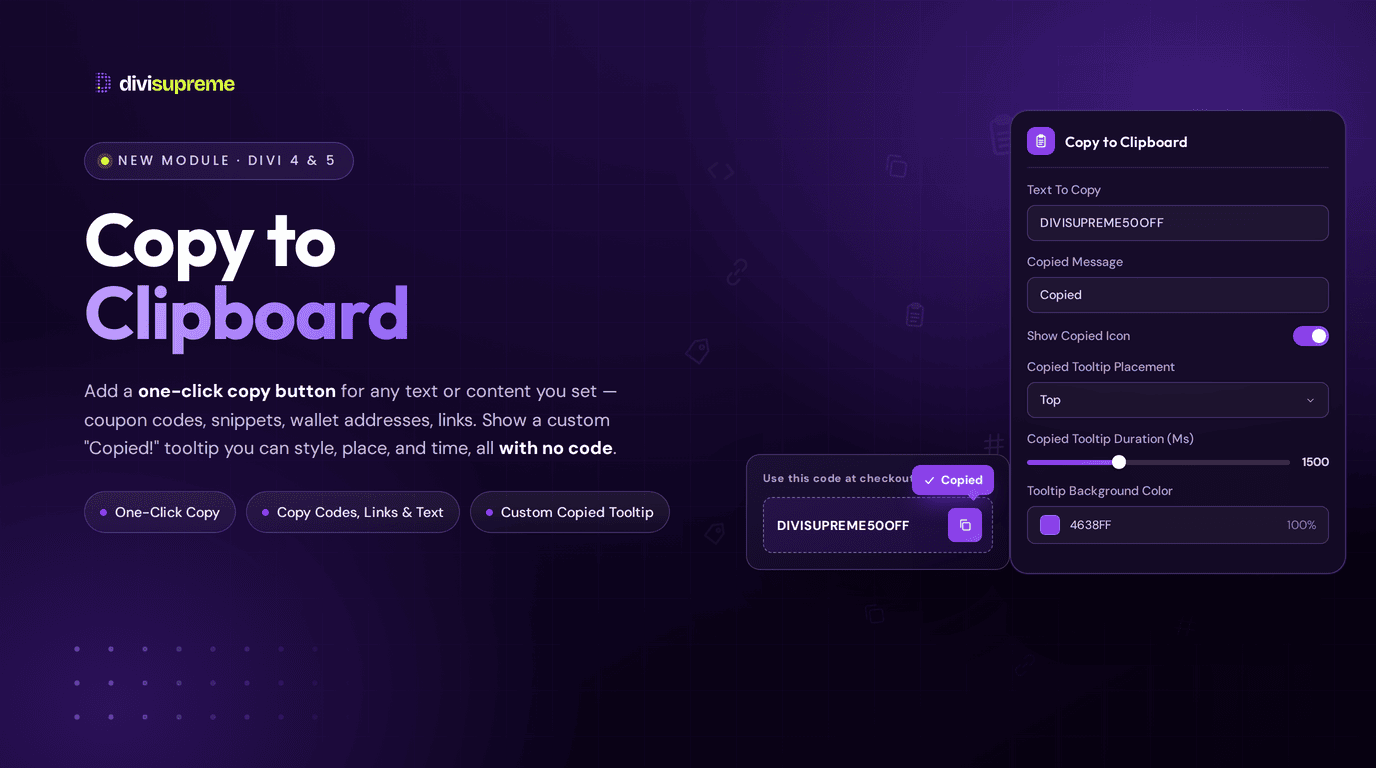
Our new Copy to Clipboard Extension removes that friction entirely. It lets your visitors copy exactly what you choose with a single click — complete with a friendly, fully customisable "Copied!" tooltip so they know it worked. Best of all, it works on all your text and content fields, so you can make almost anything on your page instantly copyable. No highlighting, no fumbling, no code.
Now available in Divi Supreme Pro (latest version 5.0.47 — see note below).
What Is the Copy to Clipboard Extension?

It gives your content a one-click "copy" action. You decide what gets copied, a visitor clicks, and it lands straight on their clipboard — with instant visual feedback confirming it worked. It's the same slick behaviour you've seen on GitHub, Stripe, and every good documentation site, now built right into Divi and styled however you like.
Real Use Cases: Where This Shines
This is one of those features you start spotting everywhere once you have it:
- Coupon and discount codes. Let shoppers tap "Copy" on your
DIVISUPREME50OFFcode instead of selecting it by hand. Fewer mis-copied codes means more completed checkouts. - Code snippets and tutorials. Publishing how-tos or CSS snippets? A copy action on each block makes your content far more useful and shareable.
- Contact details. Emails, phone numbers, addresses — one click beats squinting and highlighting on mobile.
- Referral and affiliate links. Give users a clean "Copy your link" and watch sharing climb.
- Wallet addresses, license keys, long IDs. Anything long and error-prone to select by hand is perfect for one-click copy.
Every Setting, Explained
Here's a full walkthrough of what you can control.
Title
A label or heading you can show alongside the copyable content, so visitors know exactly what they're grabbing.
Text To Copy
The heart of it — this is the exact content placed on the clipboard when someone clicks. Drop in a coupon code, a link, a snippet, an address, whatever you need. There's even a Generate Content With AI button right there, so you can spin up text on the spot without leaving the builder.
Show Copy Badge
A small badge you can display on the copyable element so visitors instantly know they can click to copy it — a subtle but important cue that invites the interaction in the first place. Toggle it on or off, and style it to match your design (more on that below).
Copied Message
The confirmation that appears after a successful copy. It defaults to a simple "Copied," but you can change it to anything — "Code copied!", "Link saved!", "Got it!" — to match your voice.
Show Copied Icon
Turn on a little success icon for extra reassurance when a copy lands. You choose exactly which icon appears in the styling tabs below.
Copied Tooltip Duration & Placement
Control how long the "Copied" tooltip lingers (in milliseconds — 1500 by default) and where it appears relative to the element: Top, Bottom, Left, or Right. Small touches that make the feedback feel just right.
Styling: Copied Icon, Copy Badge & Tooltip
Flip on Customize Tooltip Style and the styling options open up across three neat tabs:
- Copied Icon — choose exactly which success icon appears, from a searchable, filterable icon picker (a checkmark, a clipboard, whatever fits your style).
- Copy Badge — style the "click to copy" badge so it sits perfectly within your design.
- Tooltip Style — control the confirmation tooltip's background colour, text colour, icon colour, font size, border radius, and whether to show the little arrow pointing to the element.
And there's a live Tooltip Preview right in the builder, so you can see exactly how everything will look before you publish.
Full Design Control
On top of all that, the element itself carries Divi's usual design groups — Color, Text, Border, Padding, and Box Shadow — so the copy button or text looks exactly the way you want.
How to Enable It
- In your WordPress dashboard, go to Divi Supreme Pro → Extensions.
- Find the Copy to Clipboard card, switch it ON, and click Save changes.
From there you can add click-to-copy to your text and content fields, set what gets copied, and style the confirmation tooltip to taste.
Why It's Worth Using
Little details like this are exactly what separate a site that feels considered from one that feels rough around the edges. You're taking a small moment of frustration and turning it into a tiny hit of "oh, nice." Multiply that across every coupon code, snippet, and contact detail on your site — each with an on-brand confirmation tooltip — and it adds up to a noticeably smoother experience that keeps people around and gets your content shared. And it's already part of Divi Supreme Pro.
Ready to Try It?
Update to the latest Divi Supreme Pro, switch on Copy to Clipboard, and give your visitors that satisfying one-click copy. It's a small change that makes your whole site feel more polished.
These are just a few of the many improvements — your feedback is making Divi Supreme Pro for Divi 5 stronger every day. If you spot something, report it here!
Stay tuned for more updates, and please don't hesitate to reach out if you have any questions or need assistance with anything related to Divi Supreme or Divi 5.
Best Regards,
Ken and the Divi Supreme Team
How to access all Divi Supreme Modules
To access Divi Supreme Modules, you need to purchase the Pro version of our plugin. The Professional plan come with a 30% discount on renewals while we also offer you premium support and free updates during the licensing period.
Our goal is to assist you to create beautiful and effective business websites without impacting negatively on user experience.
So, give Divi Supreme Pro a try today, and don’t forget to share your experience with the Divi Supreme Plugins in the comments section below.
Or try out the Divi Supreme Lite
Divi Supreme Lite Offers 20+ Modules and 3 Beautiful Extensions and using them you can easily extend your site’s functionality.