Icon Libraries for Divi: Thousands of Fresh Icons, Right Inside the Builder
Hello Divi enthusiasts, Ken from Divi Supreme!
Let me ask you something. How many times have you been deep in a layout, reached for an icon, and thought, "...is this really all I have to work with?" Divi's built-in icons get the job done for the basics, but the moment you need something specific — a particular arrow, a cleaner social glyph, an icon that actually matches the rest of your design — you hit a wall. And the usual workaround is a mess: hunt down an SVG, wrestle with custom code or an @font-face snippet, maybe install yet another plugin, and hope it all plays nicely.
I've been there more times than I'd like to admit. So we built the fix.
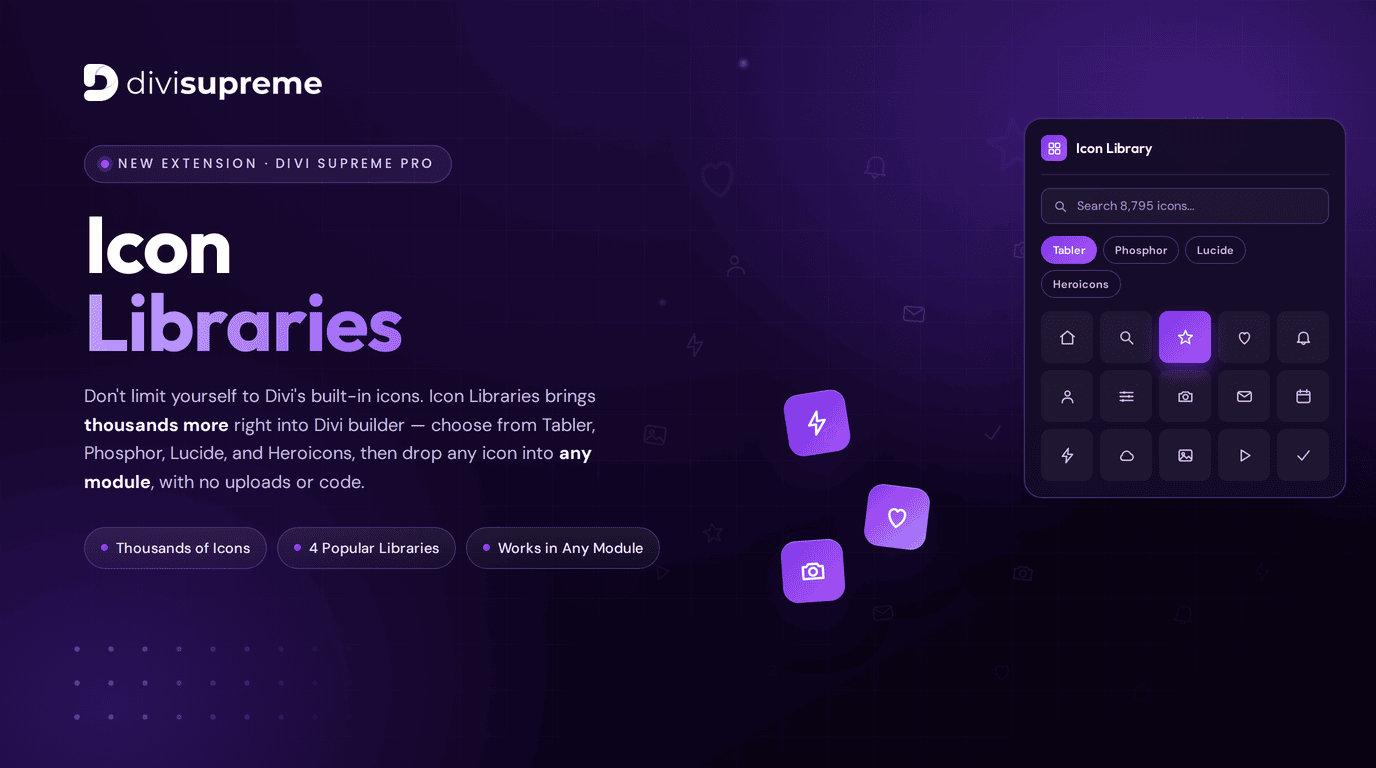
Say hello to Icon Libraries, our brand new extension in Divi Supreme Pro 5.0.22. It brings thousands of beautiful, modern icons straight into the Divi Builder — searchable, ready to drop into any module, with zero uploads and zero code.
What Is the Icon Libraries Extension?
Icon Libraries plugs four of the most loved icon sets in modern web design directly into Divi: Tabler, Phosphor, Lucide, and Heroicons. Instead of being stuck with Divi's small default collection, you get a searchable panel with thousands of icons at your fingertips — and you pick the one you want the same way you'd pick any built-in icon.
No downloading. No converting. No pasting code where you're scared to touch anything. You open the icon picker, search, click, done.
Four Icon Libraries to Start — With More on the Way
This isn't a random pile of clip-art. We chose these four sets on purpose, because they're the libraries professional designers reach for again and again — 8,795 icons in total:
- Tabler (5,093 icons) — crisp, consistent outline icons with a clean, technical feel. Brilliant for dashboards, SaaS sites, and anything that needs to look sharp.
- Phosphor (1,512 icons) — a flexible, friendly family with multiple weights, so you can go delicate or bold depending on the mood.
- Lucide (1,611 icons) — the community-driven evolution of the much-loved Feather set, beautifully uniform and endlessly versatile.
- Heroicons (579 icons) — the polished set from the team behind Tailwind CSS, perfect when you want a modern, premium finish.
Mix and match across all four, and you've got a coherent visual language for an entire website without ever leaving Divi. And we're not stopping at four — more libraries are already on the roadmap, so your icon collection will only keep growing over time.
How to Enable the Icon Libraries Extension
Setup takes about thirty seconds, and it's a quick two-step process:
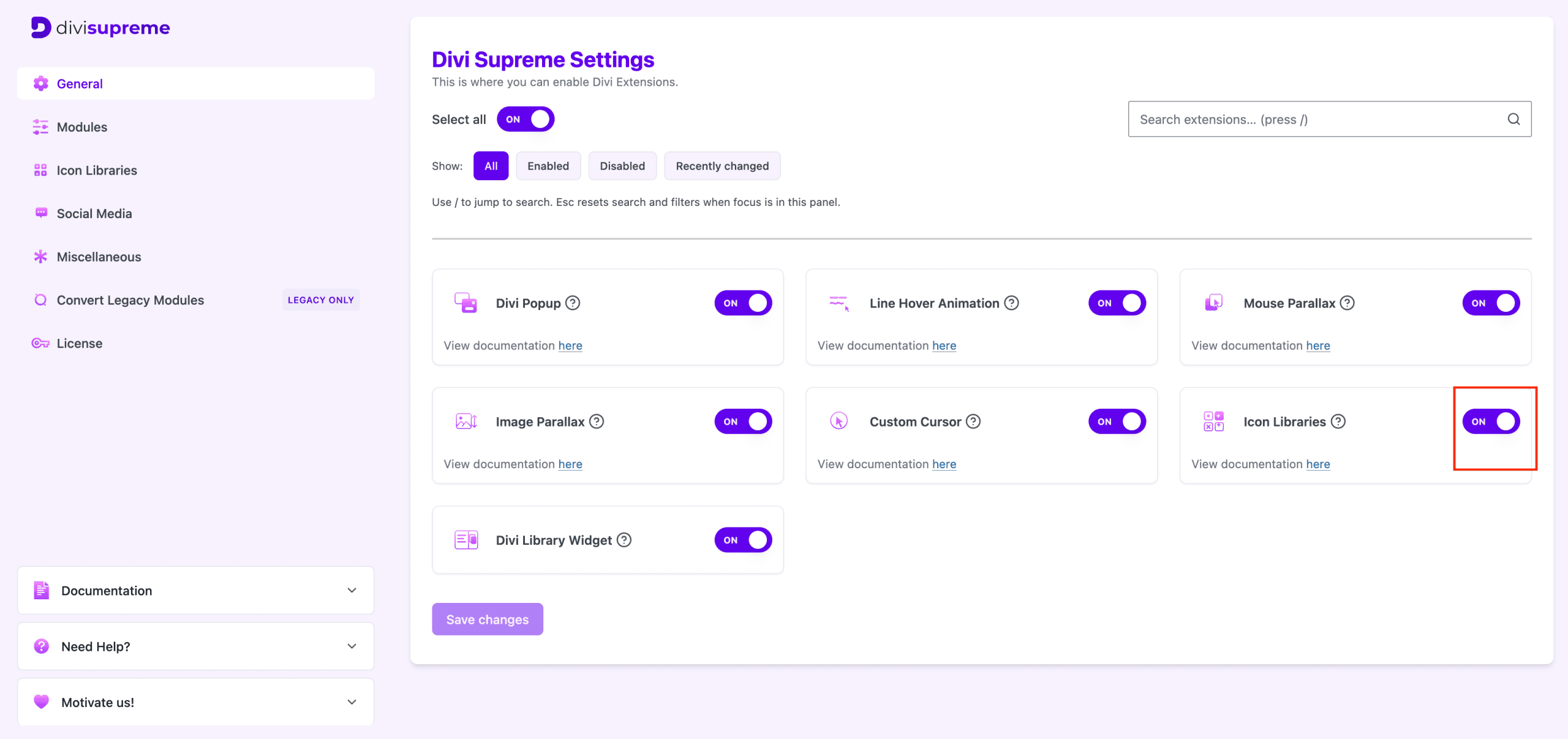
- Turn on the extension. In your WordPress dashboard, go to Divi Supreme → General, find the Icon Libraries card, switch its toggle to ON, and click Save changes.

- Choose your libraries. Open the new Icon Libraries tab in the sidebar, then switch on exactly the sets you want — Tabler, Phosphor, Lucide, and Heroicons — or flip them all on at once with Select all. Click Save changes and you're ready to go.

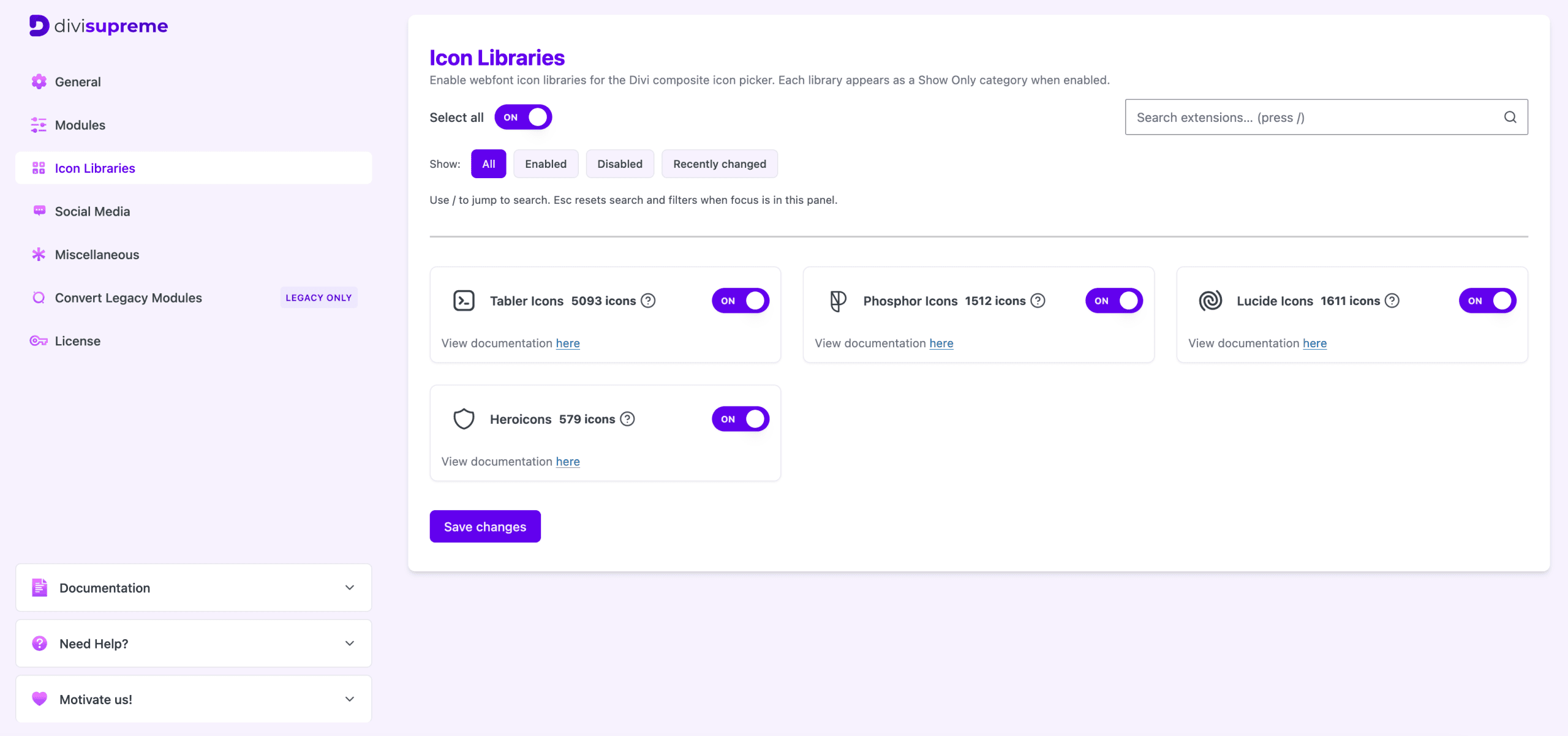
Once enabled, each library appears as its own "Show Only" category inside Divi's icon picker, so you can browse a single set or search across everything at once. No uploads, no config files, no code.
How It Works (Spoiler: It's Almost Too Easy)
Open any module with an icon field, and you'll find the Icon Library panel waiting. From there:
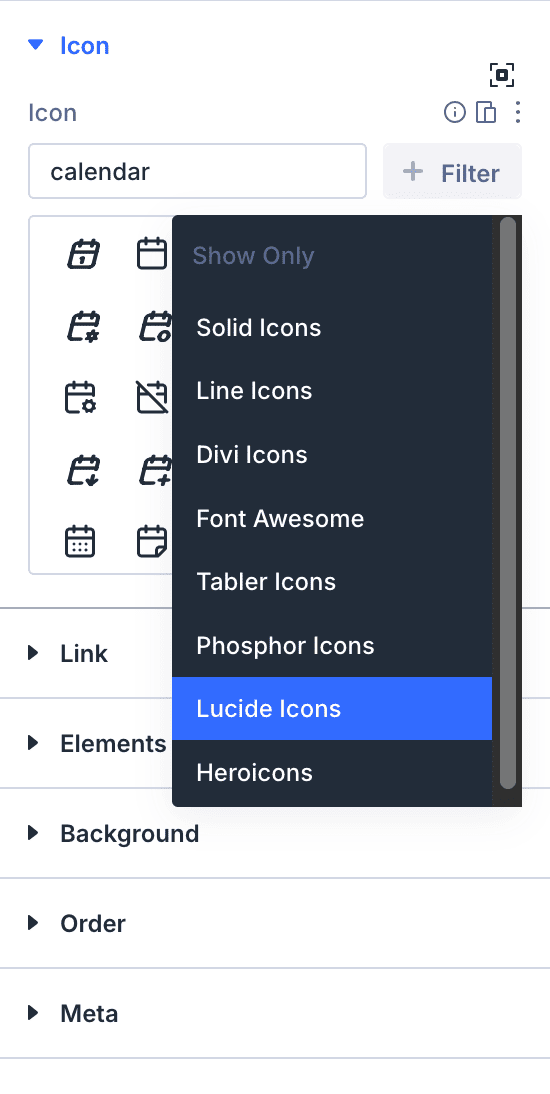
- Search. Type what you're after — "calendar," "arrow," "cart" — and watch the grid filter instantly across thousands of icons.
- Switch libraries. Tap between Tabler, Phosphor, Lucide, and Heroicons to compare styles until one clicks.
- Drop it in. Click the icon and it's placed. Style it, size it, and colour it with Divi's normal controls, exactly like a native icon.
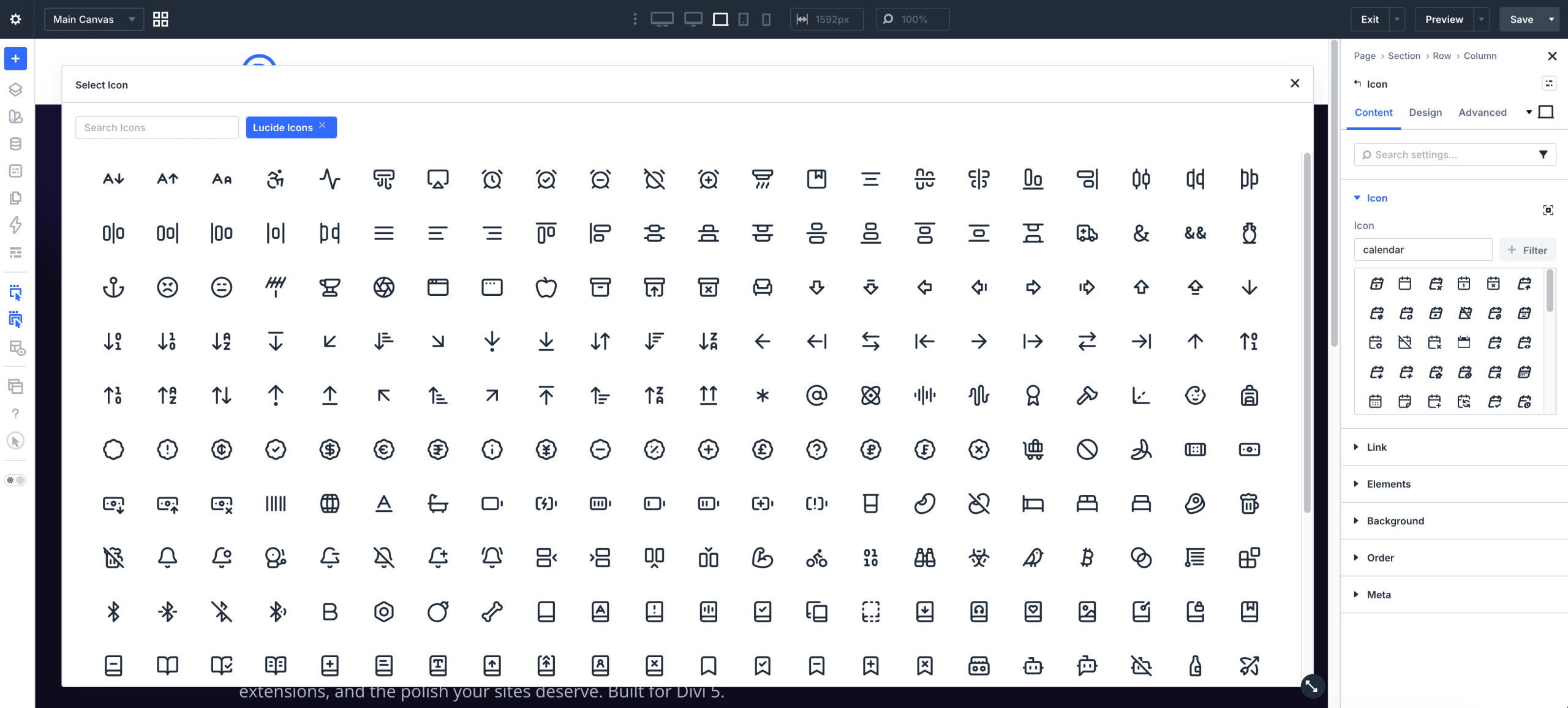
That's the whole workflow. No uploads, no code editor, no third-party icon manager running in the background.
Why Icon Libraries Beats Divi's Built-In Icons
Here's the honest comparison, because this is the part that matters.
Divi's native icon set is small and, let's be kind, a little dated. When it doesn't have what you need, your options have always been clumsy — track down an SVG and hack it in, write custom CSS, or lean on a separate icon plugin that wasn't built for Divi and shows it.
Icon Libraries replaces all of that with one integrated tool:
- 8,795 icons instead of a few hundred. Four full libraries of modern, consistent, genuinely usable icons — searchable in seconds.
- Four curated, professional libraries rather than one tired default — so your icons can finally match the quality of the rest of your design.
- It works in any module, not just ours. Anywhere Divi gives you an icon field, Icon Libraries shows up.
- No code, no uploads, no SVG wrangling. Search and click. That's it.
- Built to stay lightweight, so loading a bigger icon collection doesn't mean a heavier, slower site.
The difference isn't subtle. It's the gap between "make do with what's there" and "use the exact icon you pictured."
Why It's Worth Buying
If you build with Divi for a living — or even just take your own site seriously — the math is simple. Every project where you've fought with icons cost you time you'll never get back. Icon Libraries hands that time back to you on every single build, on every site you touch, with a single included extension in Divi Supreme Pro.
Compared to juggling free icon plugins (inconsistent, clunky, never quite Divi-native) or paying for a standalone icon service, having four top-tier libraries built right into the builder you already use is a genuine upgrade to your whole workflow. You're not buying a one-off gimmick — you're removing a recurring headache from every layout you'll ever make.
And because it's part of Divi Supreme Pro, it sits alongside everything else we've been shipping lately. It's one more reason the Pro suite keeps earning its place in your toolkit.
Where to Find It
Icon Libraries is live right now in Divi Supreme Pro 5.0.22. Update your plugin from the WordPress dashboard, open any module with an icon field, and the new library panel is there waiting for you. Already on Pro? It's ready the moment you update — nothing else to install.
Go Find Your Perfect Icon
I really think this one's going to change how you build. No more settling, no more workarounds — just thousands of beautiful icons, a search bar, and the exact look you had in your head.
Update to Divi Supreme Pro 5.0.22, open the Icon Library, and have a play. I'd love to hear which library becomes your favourite.
These are just a few of the many improvements — your feedback is making Divi Supreme Pro for Divi 5 stronger every day. If you spot something, report it here!
Stay tuned for more updates, and please don't hesitate to reach out if you have any questions or need assistance with anything related to Divi Supreme or Divi 5.
Best Regards,
Ken and the Divi Supreme Team
If you have an active or secured license for Divi Supreme plugins, rest assured it remains compatible with Divi 5. Due to ongoing development for Divi 5 compatibility, we will be adjusting our pricing.
How to access all Divi Supreme Modules
To access Divi Supreme Modules, you need to purchase the Pro version of our plugin. The Professional plan come with a 30% discount on renewals while we also offer you premium support and free updates during the licensing period.
Our goal is to assist you to create beautiful and effective business websites without impacting negatively on user experience.
So, give Divi Supreme Pro a try today, and don’t forget to share your experience with the Divi Supreme Plugins in the comments section below.
Or try out the Divi Supreme Lite
Divi Supreme Lite Offers 20+ Modules and 3 Beautiful Extensions and using them you can easily extend your site’s functionality.