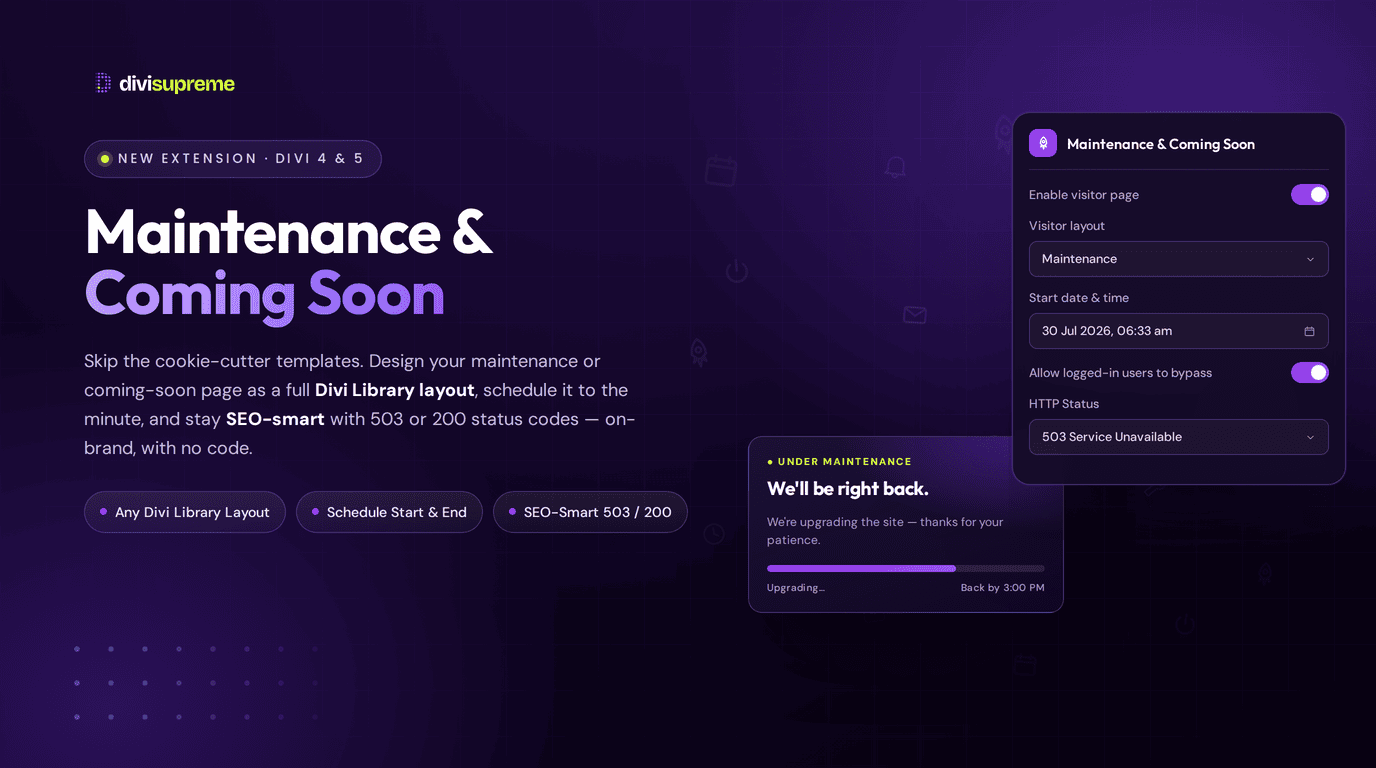
Most maintenance and coming-soon plugins hand you a stiff little template and a logo slot, and that's your lot. We went a completely different way. Our new Maintenance & Coming Soon Extension lets you design your visitor page yourself, with the full Divi Builder — so your "we'll be right back" screen can look every bit as good as the rest of your site.
Now available in Divi Supreme Pro (latest version 5.0.47 — see note below), it turns any Divi Library layout into your maintenance or coming-soon page, on a schedule you control, with smart bypass rules and SEO-friendly status codes built in. No code, no cookie-cutter templates.
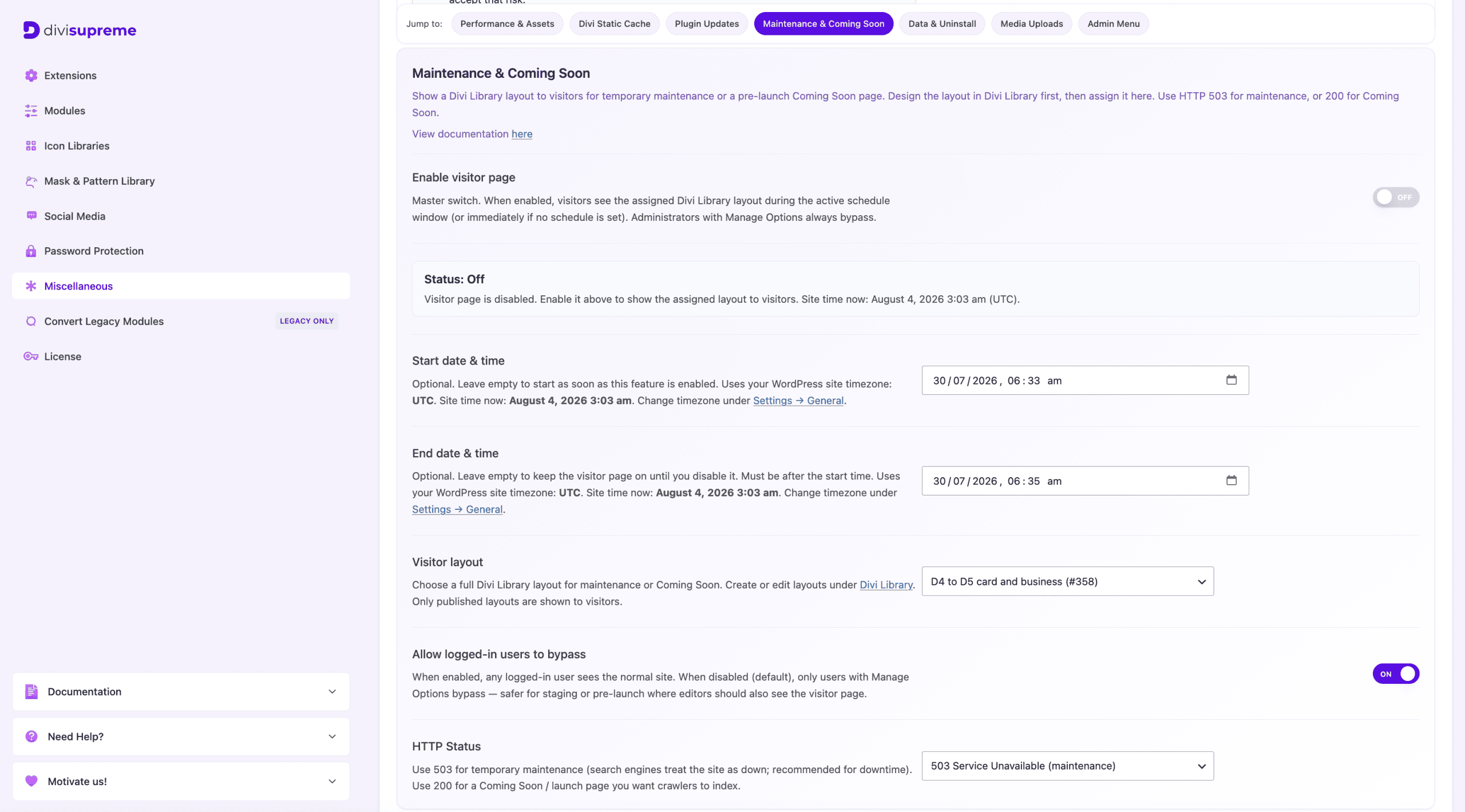
The Big Deal: You Design It, in Divi
Here's the part I'm most excited about. You build your maintenance or coming-soon page as a normal Divi Library layout — using every module, style, and effect you already know — and then simply assign it in the extension settings. That's it.
That means your holding page isn't some generic template with your logo bolted on. It's a fully custom, on-brand page: your fonts, your colours, your imagery, a countdown timer, an email opt-in, social links, a background video — whatever you can dream up in Divi, your visitors will see. Design it once in the Divi Library, point the extension at it, and you're done.
Every Setting, Explained
Here's a full walkthrough of what you can control.
Enable Visitor Page
The master switch. Turn it on and visitors see your assigned Divi Library layout during the active schedule window — or immediately, if you haven't set a schedule. Administrators with Manage Options always bypass it automatically, so you never lock yourself out.
Start Date & Time / End Date & Time
This is proper scheduling. Set a start time and your visitor page switches on by itself at exactly the right moment — perfect for a planned launch or a maintenance window at 2am. Set an end time and it switches back off automatically when you're done. Leave either one empty and it simply starts as soon as you enable it, or stays on until you turn it off. Everything runs on your WordPress site timezone, so there's no guesswork.
Visitor Layout
Choose which published Divi Library layout to show. Any layout you've created is available in the dropdown, so you can keep a "Coming Soon" design and a "Maintenance" design on hand and switch between them in a click. Only published layouts appear, so there are no half-finished surprises.
Allow Logged-In Users to Bypass
Decide who gets to see the real site while the visitor page is live. Leave it off (the default) and only administrators with Manage Options bypass — the safer choice for staging or pre-launch. Turn it on and any logged-in user sees the normal site, handy when your whole team needs access while the public still sees the holding page.
HTTP Status (the SEO-smart bit)
This little dropdown matters more than it looks. Choose 503 Service Unavailable for genuine maintenance — it tells search engines "we're temporarily down, check back later," so your rankings are protected during downtime. Choose 200 OK for a coming-soon or launch page you actually want Google to crawl and index while you build buzz. One setting, and you're doing right by both your visitors and your SEO.
Real Use Cases
- Pre-launch hype. Design a coming-soon page with a countdown and an email signup, set it to 200 so search engines can find it, and start building a list before you go live.
- Scheduled maintenance. Pushing a big update at midnight? Schedule the maintenance window in advance, set it to 503, and let it turn itself on and off automatically.
- Client builds. Keep a fresh site under wraps with a branded holding page, while you and the client (as logged-in users) see the real thing.
- Seasonal closures. Pausing orders for a holiday? Show a clear, on-brand notice instead of a store that half-works.
- Staging before go-live. Hold the front door shut with a polished page until every section is ready.
How to Enable It
- First, design your page as a layout in the Divi Library and publish it.
- In your WordPress dashboard, go to Divi Supreme Pro → Miscellaneous, find the Maintenance & Coming Soon section.
- In the section of the Maintenance & Coming Soonsettings, turn on Enable visitor page, pick your Visitor layout, set your schedule and HTTP status, and you're live.
Why It's Worth Using
This is the maintenance tool that finally respects your design standards. Instead of settling for a generic template, you get a fully custom, on-brand page built with the tools you already use — scheduled to the minute, safe for your team to work behind, and smart about your SEO. Whether you're teasing a launch or quietly pushing updates, your visitors only ever see you at your best. And it's already included in Divi Supreme Pro.
Ready to Launch (or Update) in Style?
Update to the latest Divi Supreme Pro, design your page in the Divi Library, and switch on Maintenance & Coming Soon. Build in peace, launch with a bang — on a page that looks exactly the way you want.
These are just a few of the many improvements — your feedback is making Divi Supreme Pro for Divi 5 stronger every day. If you spot something, report it here!
Stay tuned for more updates, and please don't hesitate to reach out if you have any questions or need assistance with anything related to Divi Supreme or Divi 5.
Best Regards,
Ken and the Divi Supreme Team
How to access all Divi Supreme Modules
To access Divi Supreme Modules, you need to purchase the Pro version of our plugin. The Professional plan come with a 30% discount on renewals while we also offer you premium support and free updates during the licensing period.
Our goal is to assist you to create beautiful and effective business websites without impacting negatively on user experience.
So, give Divi Supreme Pro a try today, and don’t forget to share your experience with the Divi Supreme Plugins in the comments section below.
Or try out the Divi Supreme Lite
Divi Supreme Lite Offers 20+ Modules and 3 Beautiful Extensions and using them you can easily extend your site’s functionality.