Hello Divi enthusiasts, Ken from Divi Supreme!
You have felt this one. The site is finished, the client is thrilled, and now comes the part nobody talks about. You hand over a login, and somewhere in the back of your mind a small voice asks what happens the day they open the Visual Builder, poke around, and move a section three pixels to the left “just to try something.” Best case, they email you to fix it. Worst case, they do not, and you find out from a screenshot a customer sent them.
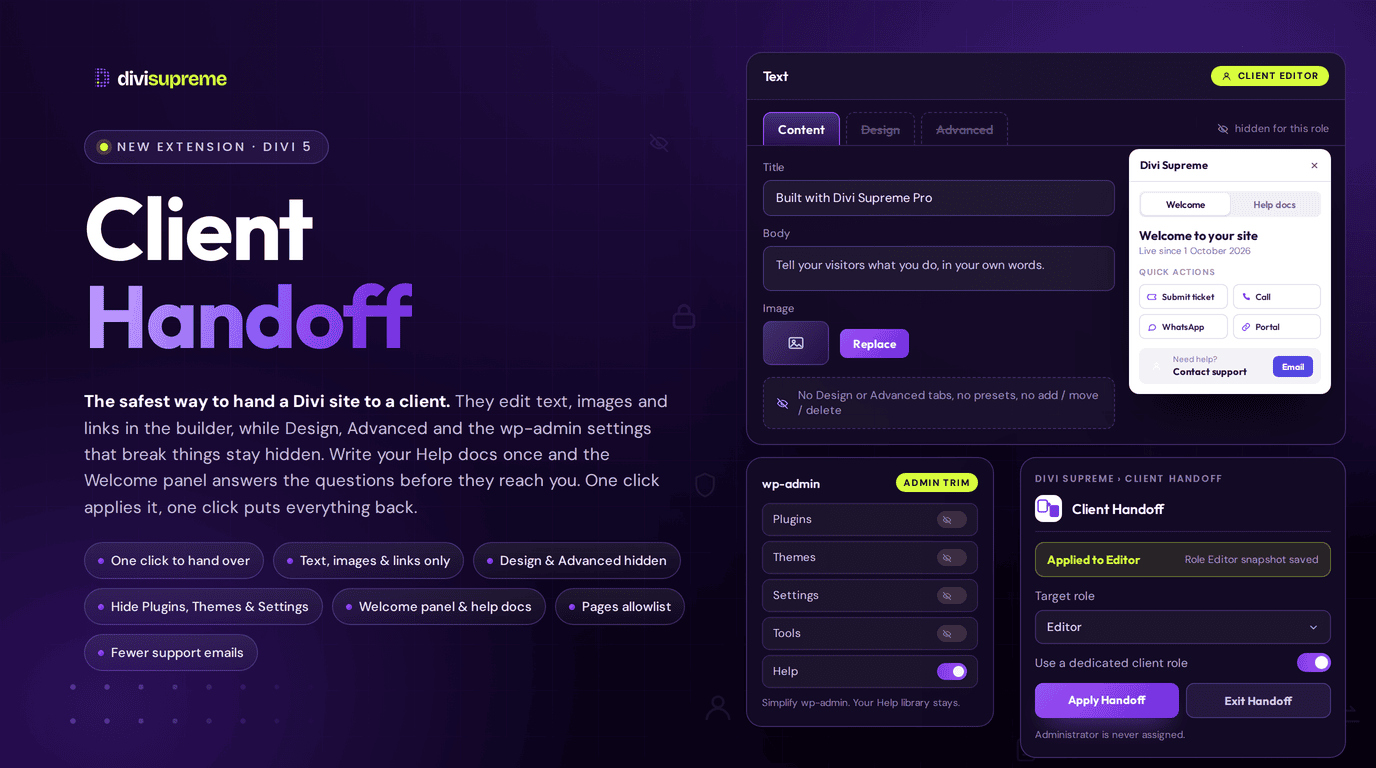
Our new Client Handoff extension is built for exactly that handover moment. One button applies a content-only editing profile to a dedicated client role, so they can change text, swap images, and update links, and nothing else. One button undoes it. Now available in Divi Supreme Pro 5.0.77.
What Is Client Handoff?
Client Handoff is an Apply and Exit switch that sits on top of Divi’s own Role Editor. Click Apply Handoff and it snapshots your current Role Editor settings, then writes a content-only profile onto a dedicated Client Editor role built for this job. That role is cloned from Editor, so it keeps edit_posts and shows up correctly inside Divi’s Role Editor, while your actual Editor role, the one your team already uses, is never touched. Administrator is never written, ever.
Click Exit Handoff later and the snapshot comes back exactly as it was, restoring every Role Editor setting to the moment before you applied it. Nothing is guessed or rebuilt. It is the same settings, put back.

Twenty Checkboxes, and Still Getting It Wrong
Divi already has a Role Editor, and it is a genuinely useful tool. Elegant Themes’ own Divi 5 documentation confirms what it can reach. Every module, row, and section has three settings tabs, Content, Design, and Advanced, and Role Editor can turn Design and Advanced off for a role. It can also disable whole modules, block the Divi Library, and restrict the Support Center and Portability settings. That is real, useful control, and it is also as fine grained as Role Editor gets. It works in whole tabs, not the option groups inside them.
Elegant Themes even wrote the manual version of what Client Handoff automates. Their own tutorial, how to use the Divi Role Editor to prepare your site for client handoff, walks through six separate sections of checkboxes: High Level Actions, Builder Interface, Library Settings, Settings Tabs, Setting Types, and Module Use. Get through all of it correctly and, in their own words, “only four actions are given the editor role”. Get one checkbox wrong and you find out from the client, or from your own account. One reader in the comments reported that after configuring the role for a client, “my administrator account is now missing the advanced settings and custom css tabs from all modules”. Another wrote that they “tried 2 hours with different settings without success”.
Client Handoff turns those six sections into one button, and it never touches your own account while doing it. Apply writes the content-only profile onto the dedicated client role only, using Role Editor’s own settings, so there is nothing new to learn on the Role Editor side and nothing left to configure by hand.
What a Client Can Touch, and What Stays Off
The content-only profile that Apply writes keeps five things on. Use Visual Builder, Edit Module, General Settings, Edit Content, and Page Options stay enabled, which is enough to open a page, click into any module, and change its text, images, and links.
Everything that could change the design or the structure stays off. Add, move, disable, and lock a module are all off, so the layout cannot shift. Design and Advanced tabs, colours, fonts, spacing, and Custom CSS are all off. The Divi Library, Theme Builder, Theme Options, Divi AI, and Divi’s Support Center are all off. The raw HTML and JavaScript Code modules are disabled for the role by default too, closing the one door a content-only profile would otherwise leave open.
Elements, Background, Loop, Meta, and Order stay off as well, and this is the one place Client Handoff has to reach past Role Editor rather than through it. Those are Divi 5 option groups inside a module’s settings tabs, and Role Editor genuinely has no keys for them, the same tab-level limit its own documentation describes. Client Handoff hooks Divi’s settings-group registration directly to hide them for the client role, alongside Element Presets, option-group presets, and the right-click preset actions.
Three Things Role Editor Cannot Reach At All
Beyond the content-only profile, Client Handoff adds three controls with nothing to compare them to in Role Editor, because Role Editor has no concept of any of them.
- The builder bar checklist hides whichever tools you tick for the client role, from Layers, Inspector, and AI Agent to Wireframe, hover action icons, X-Ray, Workspace, Help, and Product Updates. If you run Popup, Custom Cursor, Preloader, Dark Mode, or Page Tour, their builder-bar buttons appear on the same list only while that extension is enabled, so a client never sees a toggle for something you have not switched on.
- The pages allowlist decides which pages and posts the client role can open at all, not just what they can do once inside. Choose entire site, only selected pages, or all pages except the ones you pick, and you can allow or block new page creation separately.
- Admin trim hides the wp-admin menus you choose for the client role and blocks those screens directly by URL, not just from the sidebar. Themes, Plugins, Tools, Settings, and Comments can each be switched off, so a client editing a page never lands on Site Health or the theme editor by accident.


See What They Will See, Before They Ever Log In
Preview as client switches your own admin session into a user on the Handoff role for one hour, so you can open the Visual Builder exactly as your client would and confirm the builder bar, the pages allowlist, and the trimmed admin menu all look right. Exit preview from the admin bar brings you straight back to your own account, and the preview ends automatically on logout even if you forget.
A Welcome Panel and a Help Library, Not Just a Lock
Restricting what a client can touch is only half the job. Turn on Client Handoff and a new Client Guide tab appears alongside it, where you set your agency name, welcome message, logo, support contact, and up to twelve quick action buttons once, each pointing wherever you want, a support form, a booking link, a walkthrough video.

The moment Handoff is applied, that client role gets a dashboard widget waiting for them the first time they log into wp-admin, titled with your agency name. Only the client role sees it. Your own dashboard, and every other account on the site, looks exactly as it always has.

The same welcome content follows the client into the Visual Builder itself, behind a small toolbar icon that opens a modal with two tabs, Welcome and Help docs, so they never have to leave the page they are editing to find your contact details or ask what something does.


Help is a proper hierarchical library you write yourself, a dedicated Client Help Library post type that appears under Divi Supreme Pro’s own menu once Client Handoff is switched on, editable by administrators only. Write one doc per topic, nest them the way a manual nests chapters, and every doc is available to the client from that same dashboard widget and that same in-builder modal, right next to whatever they are working on.

Real Use Cases
- Handing off a finished project. Apply Handoff, assign the client’s account to the new role, and the only thing they can break is a headline.
- A junior teammate on a client site. Give them the same content-only access you would give the client, without adding another Editor account that can touch layout.
- A short-term contractor. Preview as client to confirm scope before they start, then Exit Handoff the moment the contract ends and every Role Editor setting returns to normal.
- A seasonal store update. Let a store manager edit product copy and banners through the Handoff role during a sale, with Themes and Plugins hidden from wp-admin the whole time.
How to Enable It
- In your WordPress dashboard, go to Divi Supreme Pro → Extensions and switch on Client Handoff.
- Open the new Client Handoff tab and click Apply Handoff. Leave Use a dedicated client role ticked so your own Editor role stays untouched, and name the role if you want something other than the default Client Editor.
- Assign your client’s WordPress account to the new role from the Assign client users panel, or from the Users screen directly.
- Set up the pages allowlist, admin trim, and builder bar checklist to match the project, then use Preview as client to check the result before you send the login over.
The full option reference, including the builder bar tool list and the admin trim menus, lives on the Divi 5 extensions documentation.

Why It’s Worth Using
The fear behind every handoff is the same. You built something carefully, and now someone with less context than you has the same builder open. Client Handoff does not ask you to trust a client’s restraint or your own memory of twenty checkboxes six months from now. It gives you one button that locks the design in place, one button that lets go of it again, and a Preview mode so you find out what they will see before they do. Pair it with our Password Protection extension when a site also needs to stay hidden from the public until launch day, and you have both sides of a handoff covered, who can edit it and who can see it.
Ready to Try It?
Update to the latest Divi Supreme Pro, switch on Client Handoff, and give your next client login the guardrails it should have had from day one.
These are just a few of the many improvements. Your feedback is making Divi Supreme Pro for Divi 5 stronger every day. If you spot something, report it here!
Stay tuned for more updates, and please don’t hesitate to reach out if you have any questions or need assistance with anything related to Divi Supreme or Divi 5.
Best Regards,
Ken and the Divi Supreme Team