Hello Divi enthusiasts, Ken from Divi Supreme!
You open a long article, glance at the top for some hint of how much time it will cost you, and find nothing. Most readers do this without thinking about it. A small “6 min” under the title is often the difference between reading now and saving it for later, which usually means never.
Divi has never had a way to show that number. Elegant Themes publishes a tutorial for adding a reading time to Divi posts, which tells you the need is real, but the route it takes is a small project. Our new Supreme Post Reading Time module turns it into one module you drop into your template. It counts the words in each article, works out the minutes, and prints the result in whatever style you give it. Now available in Divi Supreme Pro.
What Is the Post Reading Time Module?
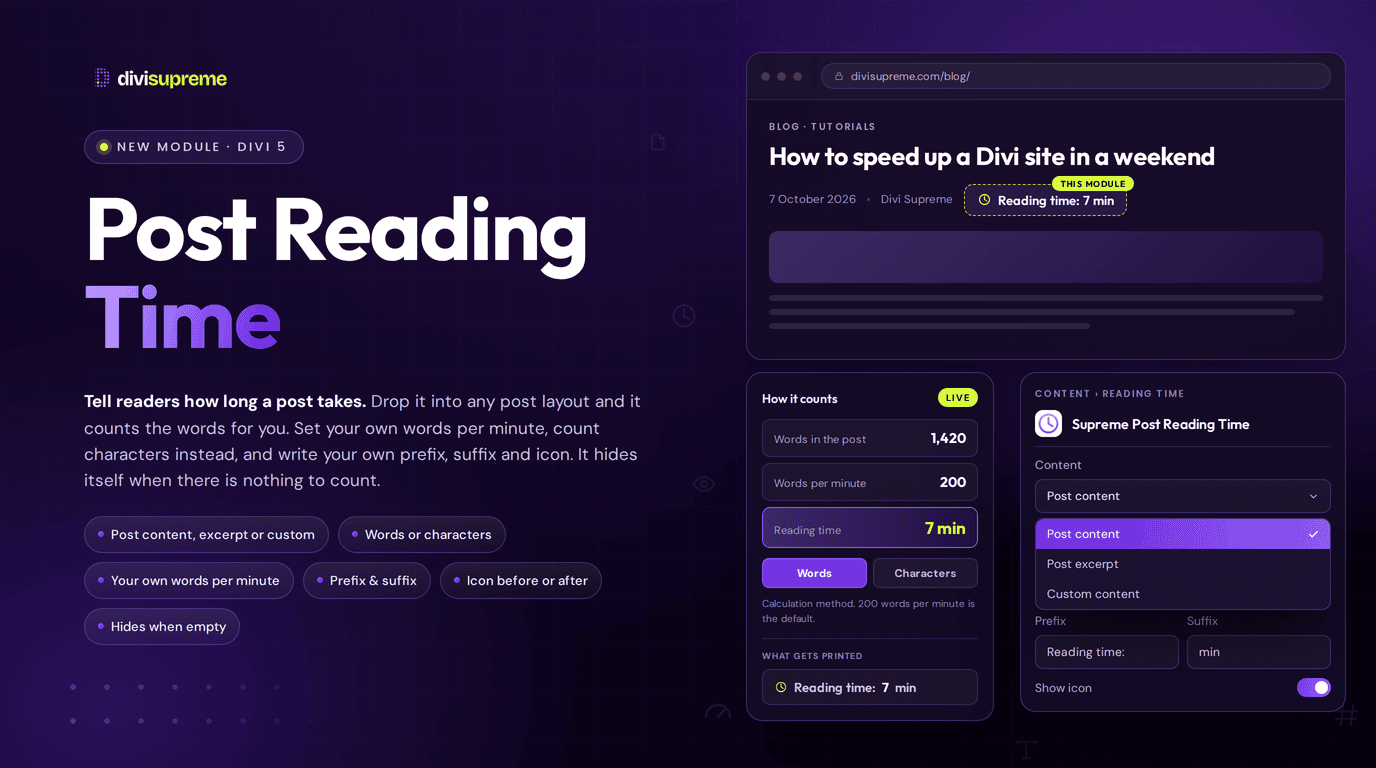
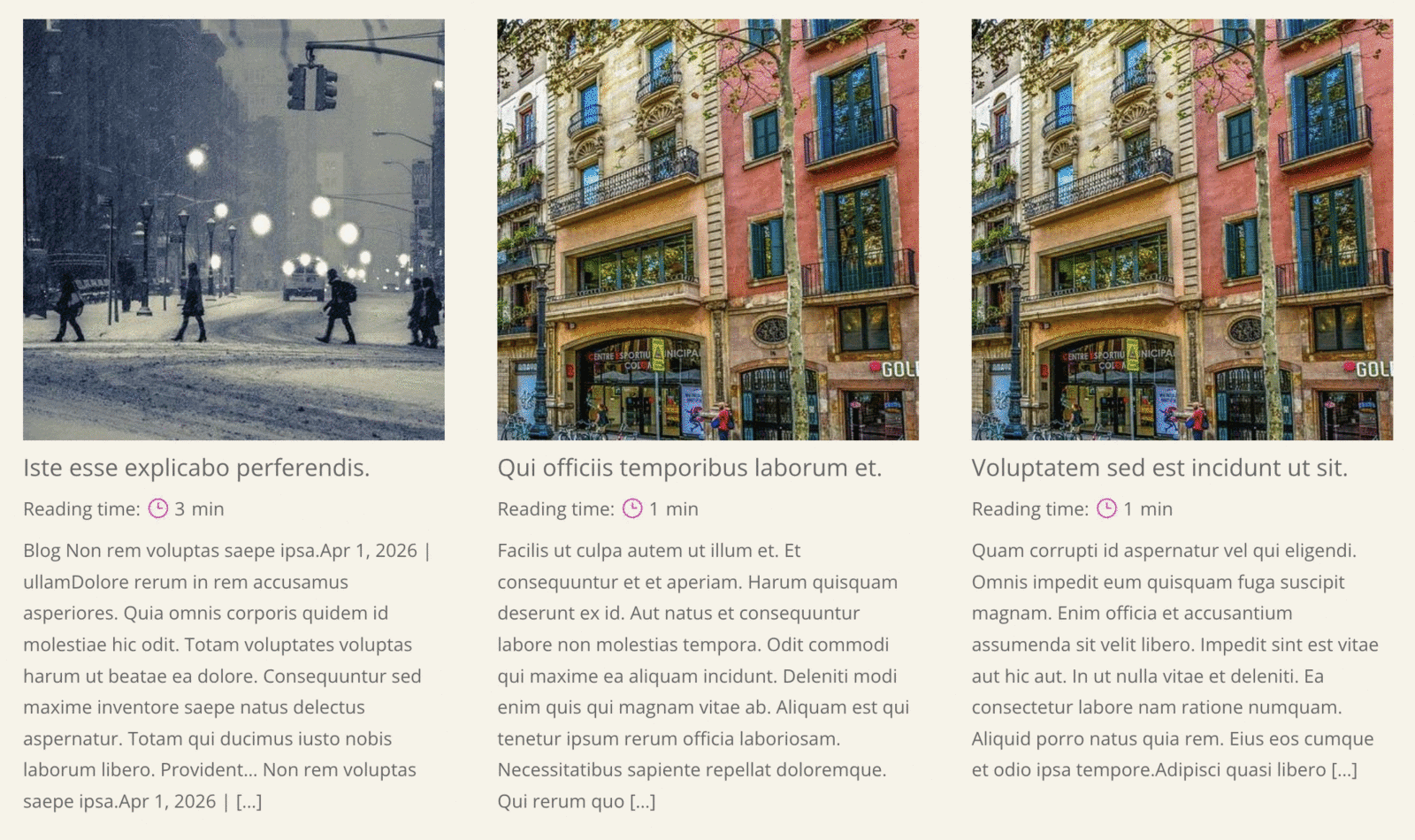
It is a Divi 5 module that prints an estimated reading time for an article, in the same spirit as the “5 min read” line you see on Medium. By default it shows the words Reading time, a small icon, the minute count and min.
The number is never typed in by hand. The module reads the post it sits on, strips out the markup, counts what is left and rounds up to whole minutes. Add it once to your blog post template and every article gets its own figure. Add it to a blog Loop and every card gets one too.
Why the Old Route Takes So Much Setup
The Elegant Themes tutorial is a good piece of work, and it is honest about what is involved. Here is the whole recipe, taken from the article itself.
- You load a third-party script library by adding a script tag under Theme Options → Integrations.
- You build a Text module with two empty
spanelements, give them the classesetaandword-count, and position the row absolutely at the bottom left. - You paste a block of jQuery into a Code module, pointed at the
et_pb_post_contentclass so it knows which text to count.
It works, and the comments under the article show people getting it running years later. They also show people who followed the steps and could not get it to appear, one missing quote mark in the script tag away from nothing at all. That is the nature of a setup that lives in three places at once.
Divi’s own Dynamic Content does not fill the gap. The list in Elegant Themes’ Divi 5 documentation covers titles, excerpts, publish dates, comment counts, links, author details, site details and the current date, but no reading time. There is simply no field to pick.
One Module Where Three Pieces Used to Be
Supreme Post Reading Time collapses that recipe into a single module with ordinary Divi settings. There is no library to load, no class names to match and no script to paste.
The count also happens on the server, when the page is built, rather than in the visitor’s browser after the page has loaded. Your reading time is already in the page when it arrives, and it does not depend on a script finding the right element at the right moment.
A few details are handled so you do not have to think about them. Tags, comments and shortcodes are stripped before counting. The module’s own label is not counted as part of the article. Text you have set separately for tablet, phone or hover is counted once, not three times. If an article is empty, the module simply renders nothing instead of showing “0 min”.
Where You Would Use It
- Single post bylines put the reading time right under the title, next to the author and date.
- Theme Builder post templates use the module once in the body layout, and every article picks up its own number.
- Blog Loops give each card in a grid its own reading time, so visitors can choose between a quick tip and a long guide at a glance. If you filter that grid, our Supreme Loop Filter sits on the same Loop.
- Excerpt cards can count the post excerpt instead of the full article, so the figure matches the teaser a visitor is actually looking at.
- Fixed copy counts text you type into the module, which is handy for a landing page that wants a “2 min read” label without being a post.
The Settings That Change What You Can Build
There are a handful of options, and three of them shape the result.
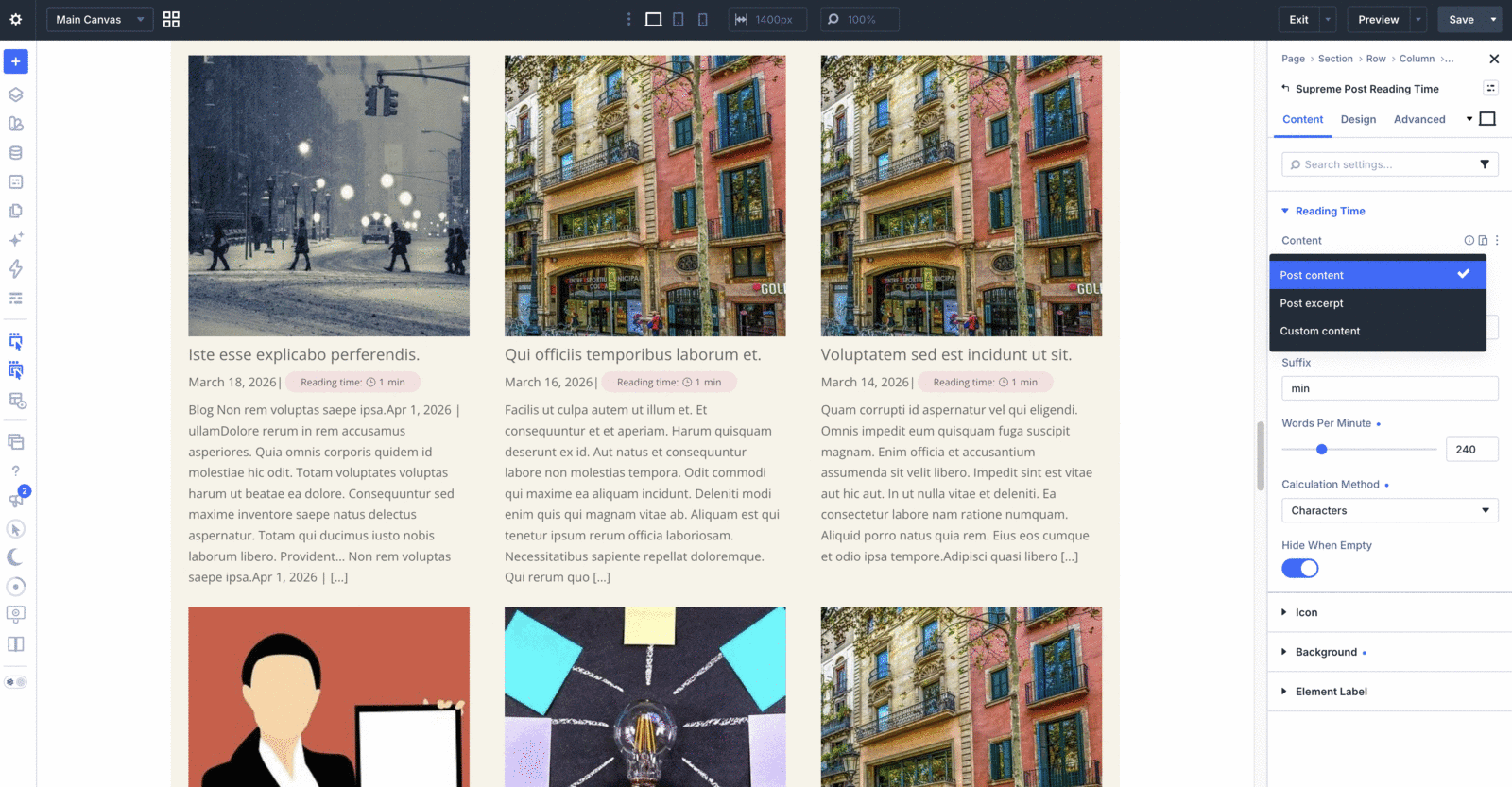
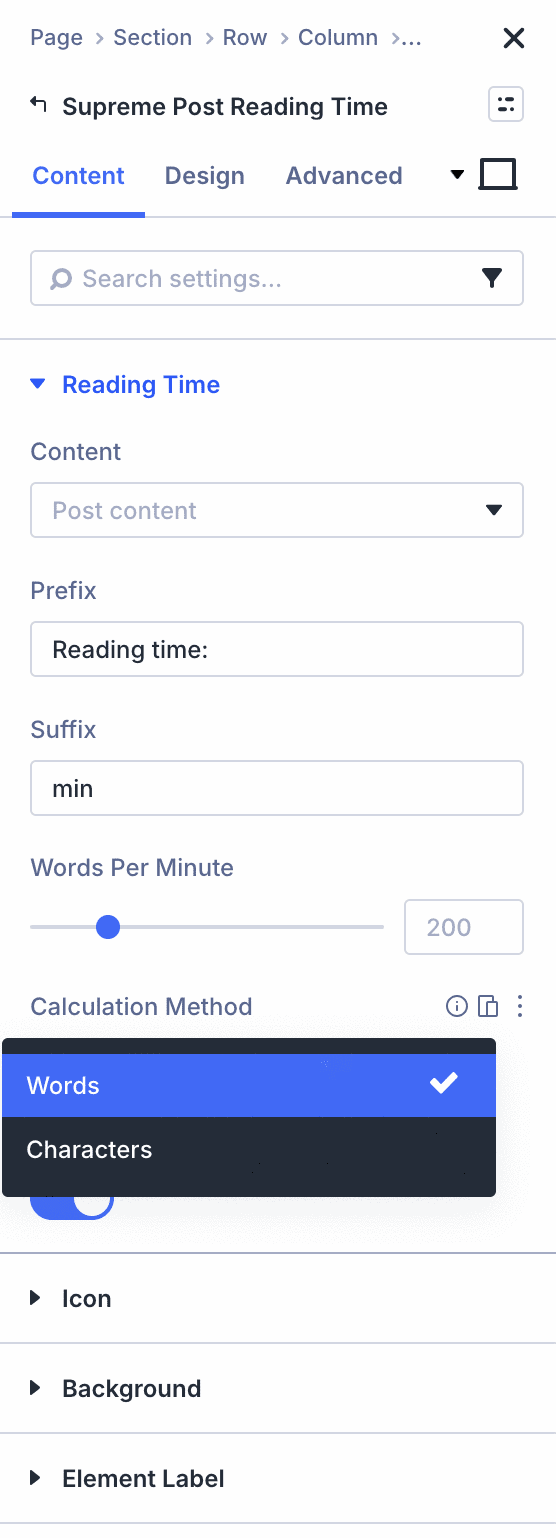
Content decides what gets counted. You can choose the full post, the excerpt, or custom text that is counted but never shown. An empty excerpt falls back to one generated from the post body, so cards never come up blank.
Words per minute sets the reading speed, with 200 as the default and a range of 1 to 1000. Raise it for a shorter estimate, or lower it for a longer one. A Calculation method switch also lets you count characters instead of words, treating five characters as one word, which suits languages where spaces make a poor measure.
Prefix and Suffix let you rewrite the sentence. Keep the default wording, or clear the prefix and change the suffix to “min read”. Clear both and you are left with the number alone.
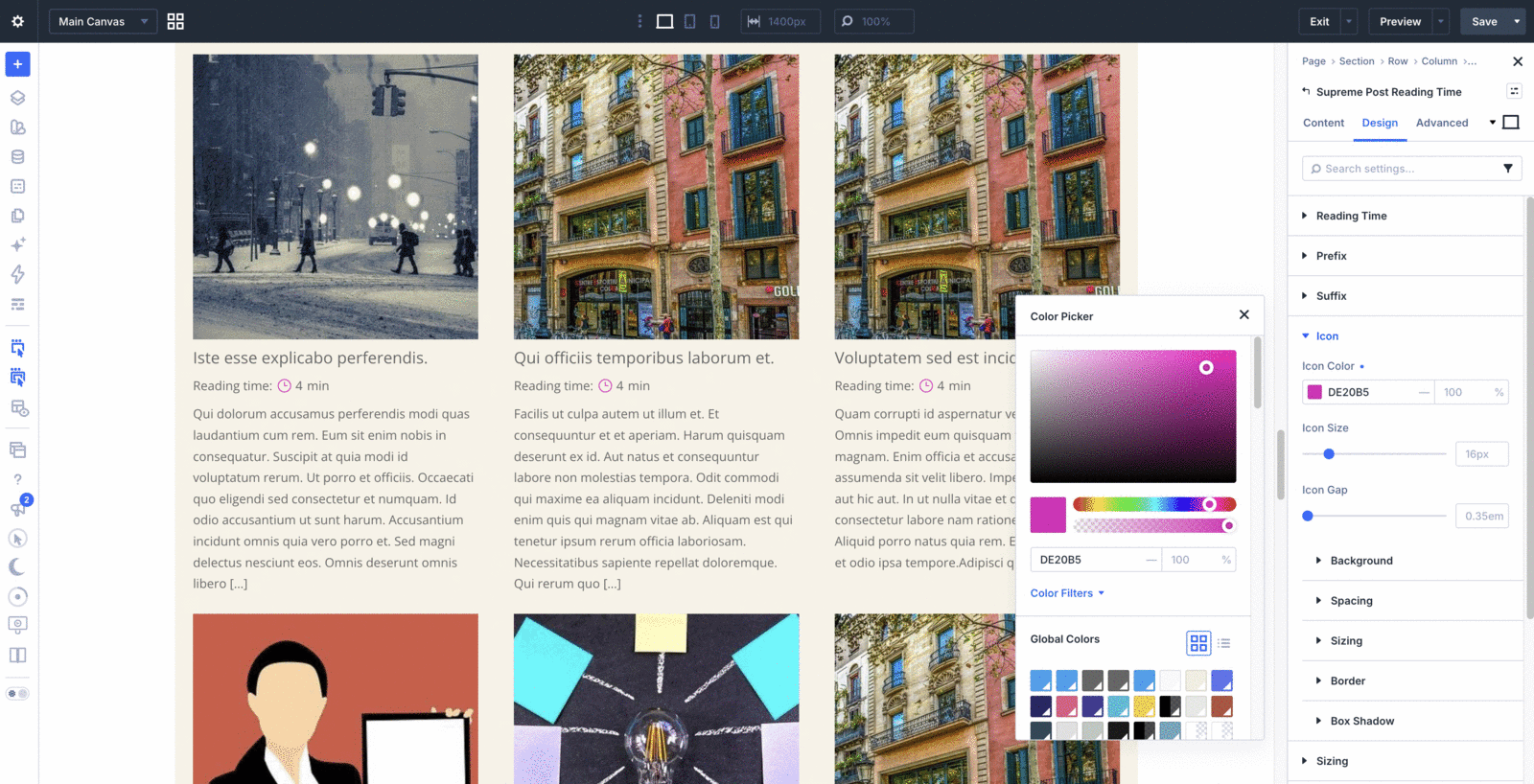
The icon can sit before the minutes or after the suffix, and it has its own colour, size and gap. The prefix, suffix and icon each carry their own background, spacing, border and shadow, so you can turn the minute count into a small pill if you like. The docs cover every option in detail.
How to Enable It
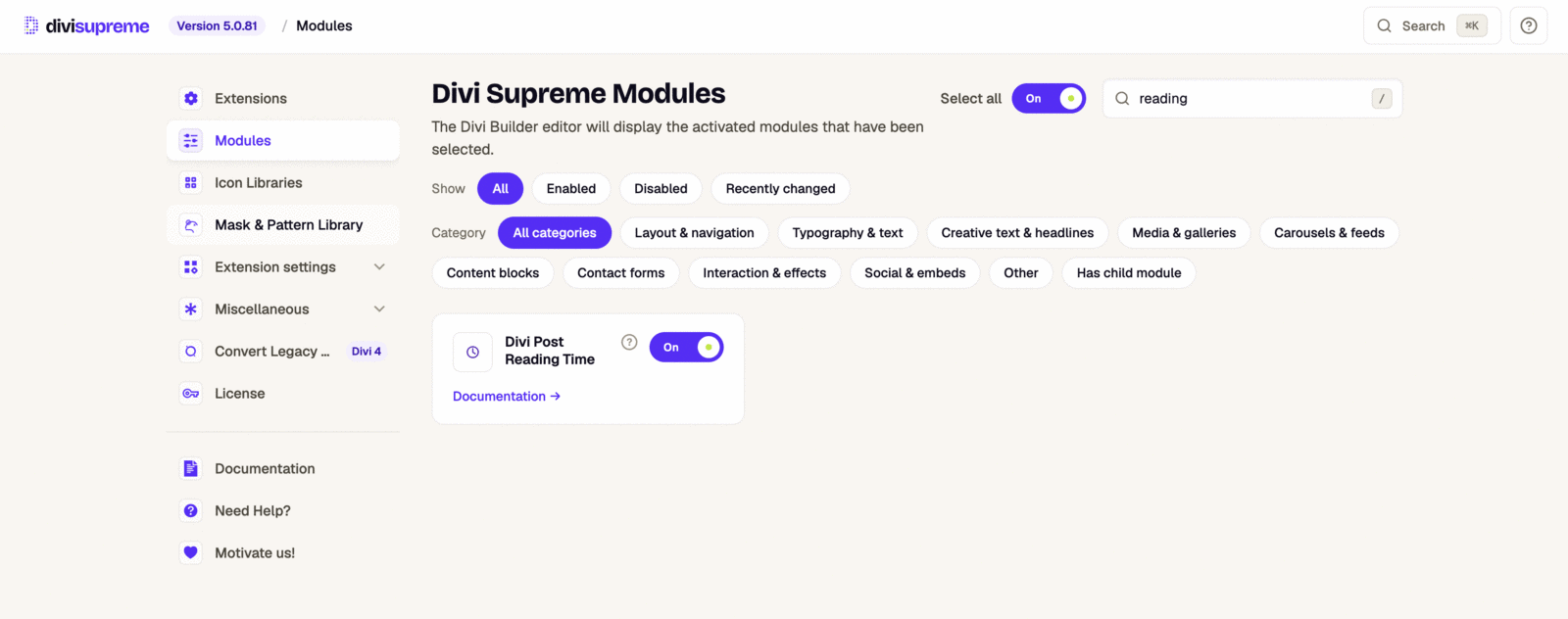
- In your WordPress dashboard, go to Divi Supreme → Modules and switch on Post Reading Time.
- Save, then reload the Visual Builder.
- Open a post, a Theme Builder body layout or a Loop item, and insert Supreme Post Reading Time from the Divi Supreme category.
- Adjust the prefix, suffix and icon, then save and check a published post.
One thing worth knowing. The module needs an article to count. On a single post, in a Theme Builder post template or inside a Loop of posts, that is automatic. On an archive page with no Loop there is no article, so put the module inside the Loop that prints the posts, not above it.
Why It’s Worth Using
A reading time is a small courtesy that makes a blog feel considered. It sets expectations, it helps people choose what to read, and it costs you nothing once it is in the template. What used to mean a script library, class names and a Code module is now one module you style like any other.
It is included in Divi Supreme Pro with no per-site limit and nothing extra to buy.
Ready to Try It?
Update to the latest Divi Supreme Pro, switch on Post Reading Time under Modules, and give your blog the small line your readers have been looking for. Version details are always on the changelog.
These are just a few of the many improvements. Your feedback is making Divi Supreme Pro for Divi 5 stronger every day. If you spot something, report it here!
Stay tuned for more updates, and please don’t hesitate to reach out if you have any questions or need assistance with anything related to Divi Supreme or Divi 5.
Best Regards,
Ken and the Divi Supreme Team