Hello Divi enthusiasts, Ken from Divi Supreme!
You have built a beautiful product catalog or a directory of team members with Divi’s Loop Builder, and now the client asks the obvious next question. Can visitors search it? Can they narrow it down by category or price? Can they send someone a link straight to the filtered view they just found? A loop with fifty items and no way to search it is just a very long page.
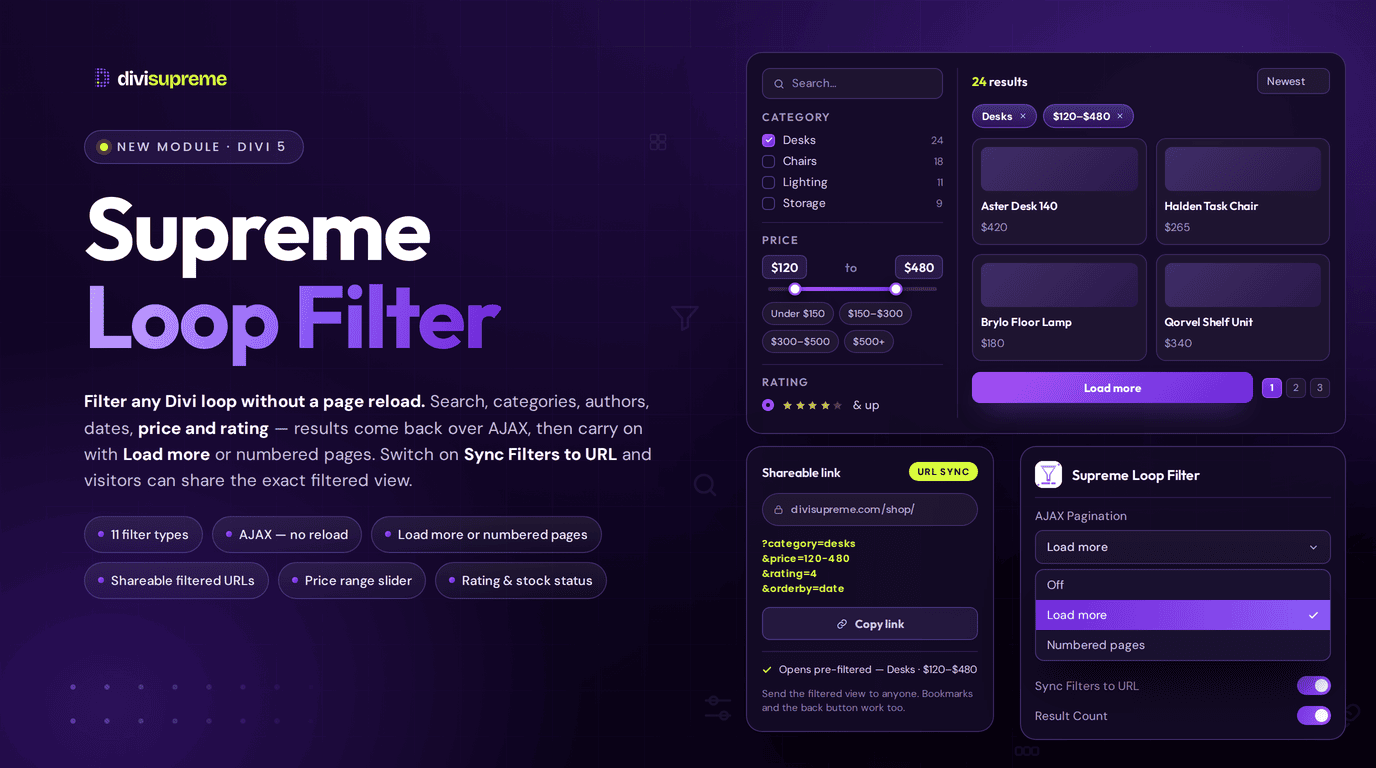
Supreme Loop Filter wraps any Divi 5 Loop in a filter bar, search box, taxonomy list, date range, WooCommerce price slider, or whatever combination the content needs, with AJAX updates, pagination and shareable URLs handled for you. Now available in Divi Supreme Pro 5.0.70.
What Is Supreme Loop Filter?
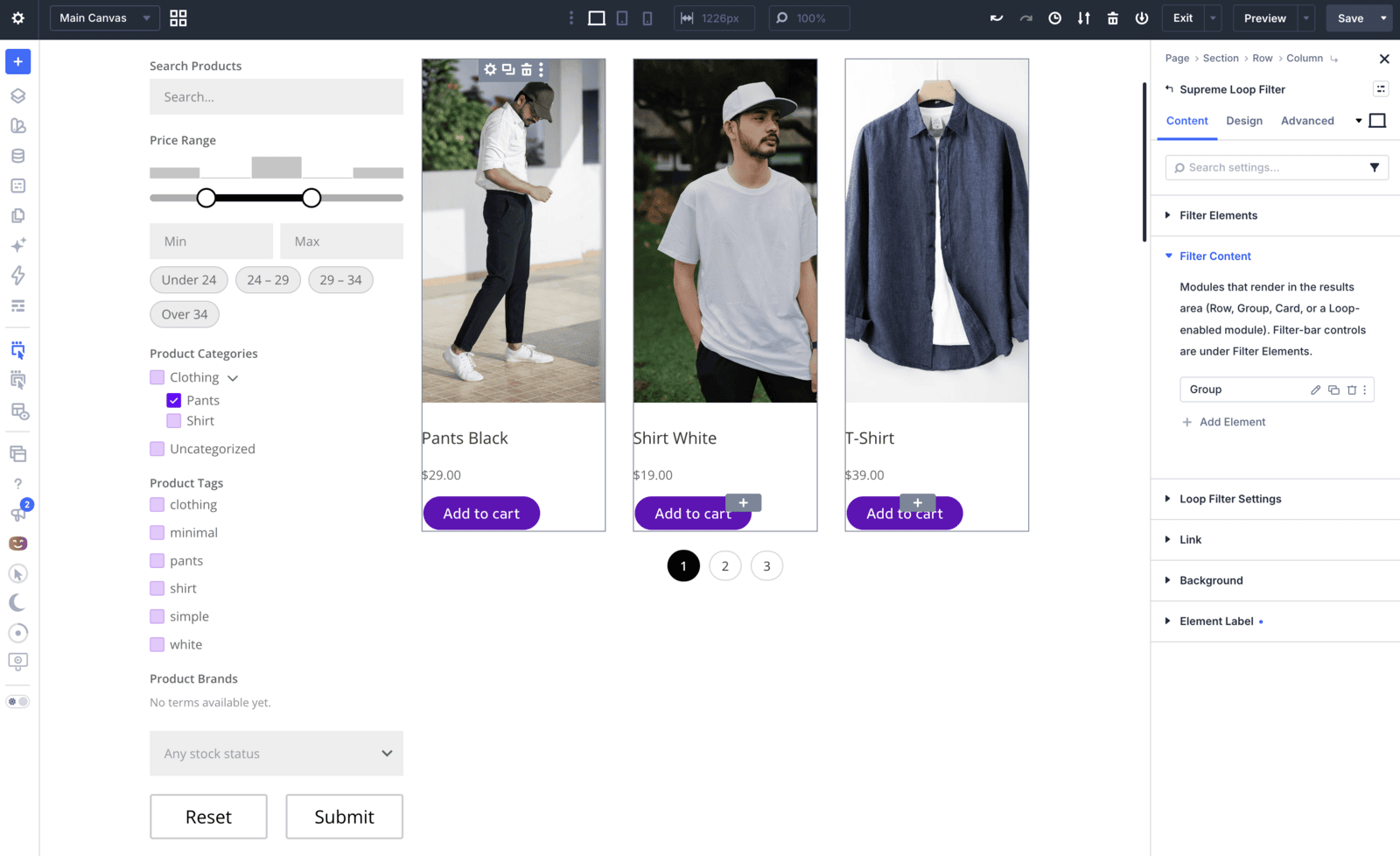
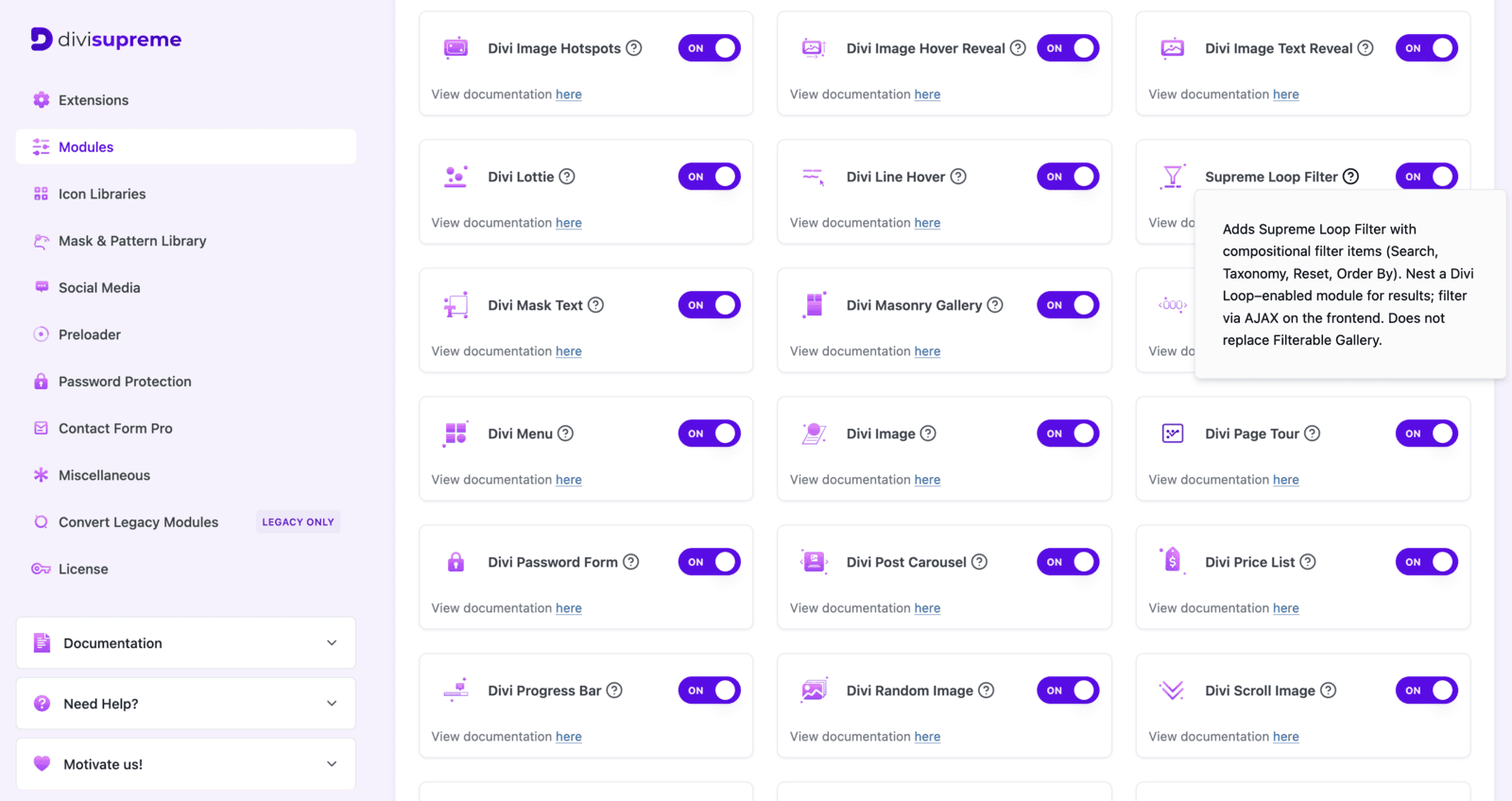
It is a parent and child pair, the module ships opt-in and off by default, and you turn it on under Divi Supreme → Modules rather than Extensions. The parent, Supreme Loop Filter, holds two areas. Filter Content is where you nest the Loop itself, the rows and cards that make up your results. Filter Elements is where you add Loop Filter Item children, one per control. It ships with four starter items already in place, Search, Taxonomy, Reset and Submit, so a working filter bar exists the moment you insert it.
Each item can be a Search box, a Taxonomy list (Select, Radio or Checkbox), an Author picker, a Date range, a Custom Field filter, an Order By dropdown, or Submit and Reset buttons. Put a Loop in Filter Content first, since taxonomy lists and authors populate from whatever content sits inside it.
Why the Loop Lives Inside the Filter
Elegant Themes’ own build guide for the Post Filter Module shows the more common way to do this. You build your loop first, then insert the Post Filter Module somewhere else in the layout and open Content → Target to choose your loop under Target Loop. The form and the results are two separate modules, wired together by a reference.
That wiring is what makes their own mobile instructions so involved. Their guide has you duplicate the entire Post Filter Module into a Toggle for phones and tablets, connect that duplicate to the same Target Loop, then disable the Toggle on desktop and disable the original sidebar copy on phone and tablet through Advanced → Visibility. Two copies of the same form, each pointed at the loop separately, each carrying its own visibility rule to stop them from showing at the same time.
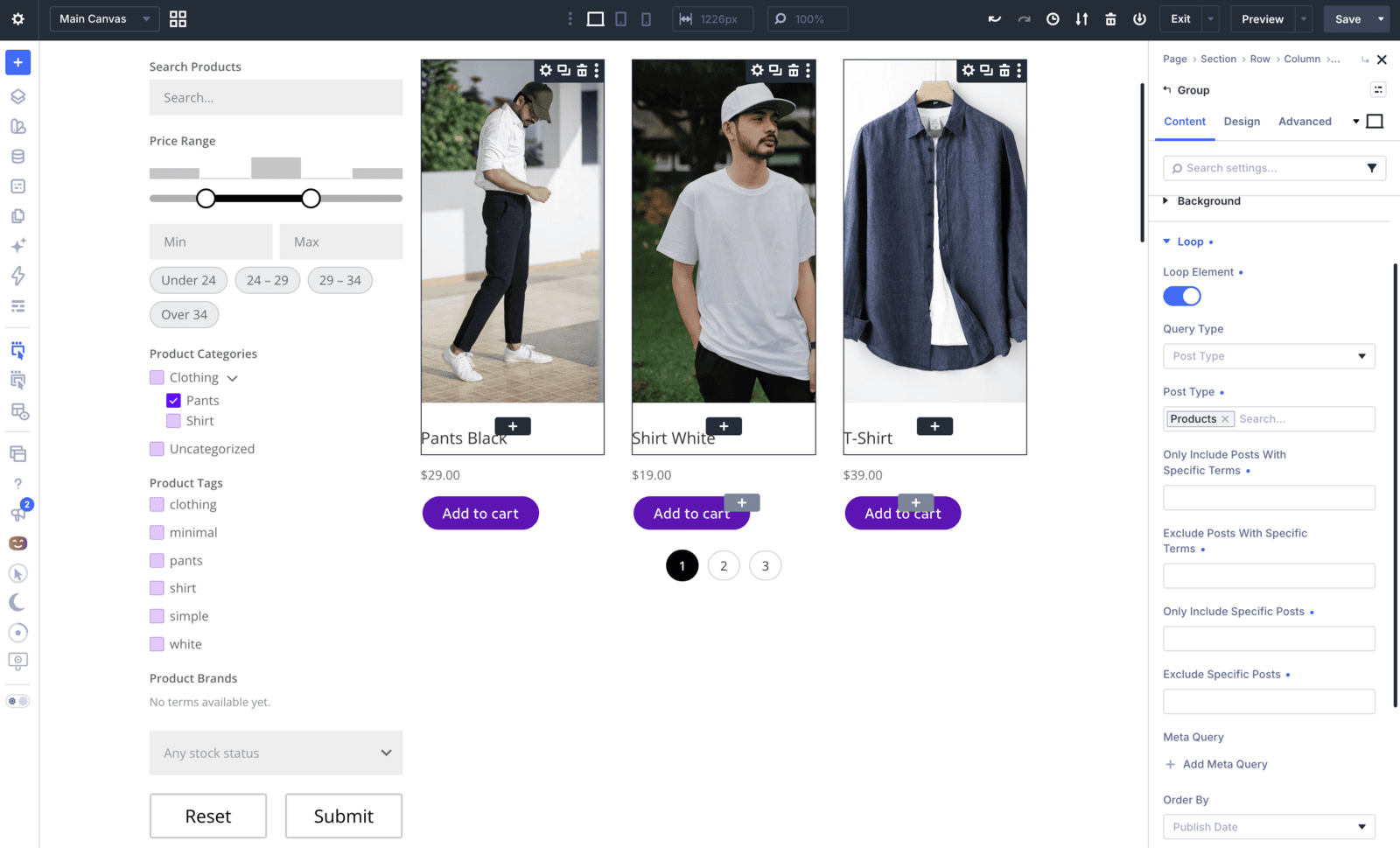
Supreme Loop Filter skips the wiring by skipping the separation. Filter Content holds the Loop being filtered and Filter Elements holds the controls, both inside the one module. There is no Target Loop setting to set, and nothing to keep in sync if you rename a row or move the module into a different column, since the results travel with the filter rather than being found through a reference to them. Responsive is a layout setting on that same module rather than a second module to build. Filter Layout switches between a horizontal bar and a vertical sidebar, and Stack Breakpoint decides when the sidebar collapses above the results on a phone, so one module covers every screen size without a duplicate hidden behind a Toggle.
It Filters Your Shop, Not Just Your Blog
Divi 5 shipped its own native filter this year, the Post Filter Module, and Elegant Themes published a full build guide for it today. It is a genuinely capable tool for a blog or a custom post type loop, and it deserves credit for that. But read the comments under their own announcement post and you find a WooCommerce store owner named Barbara asking to attach it to her standard shop loop, only to watch the filter revert to default settings the moment she added a second element. Elegant Themes’ own team answered directly. The module, in their words, “cannot hook into the standard WooCommerce product loop.” Their workaround is to rebuild the entire shop loop from scratch with the Loop Builder just to get a filter on it.
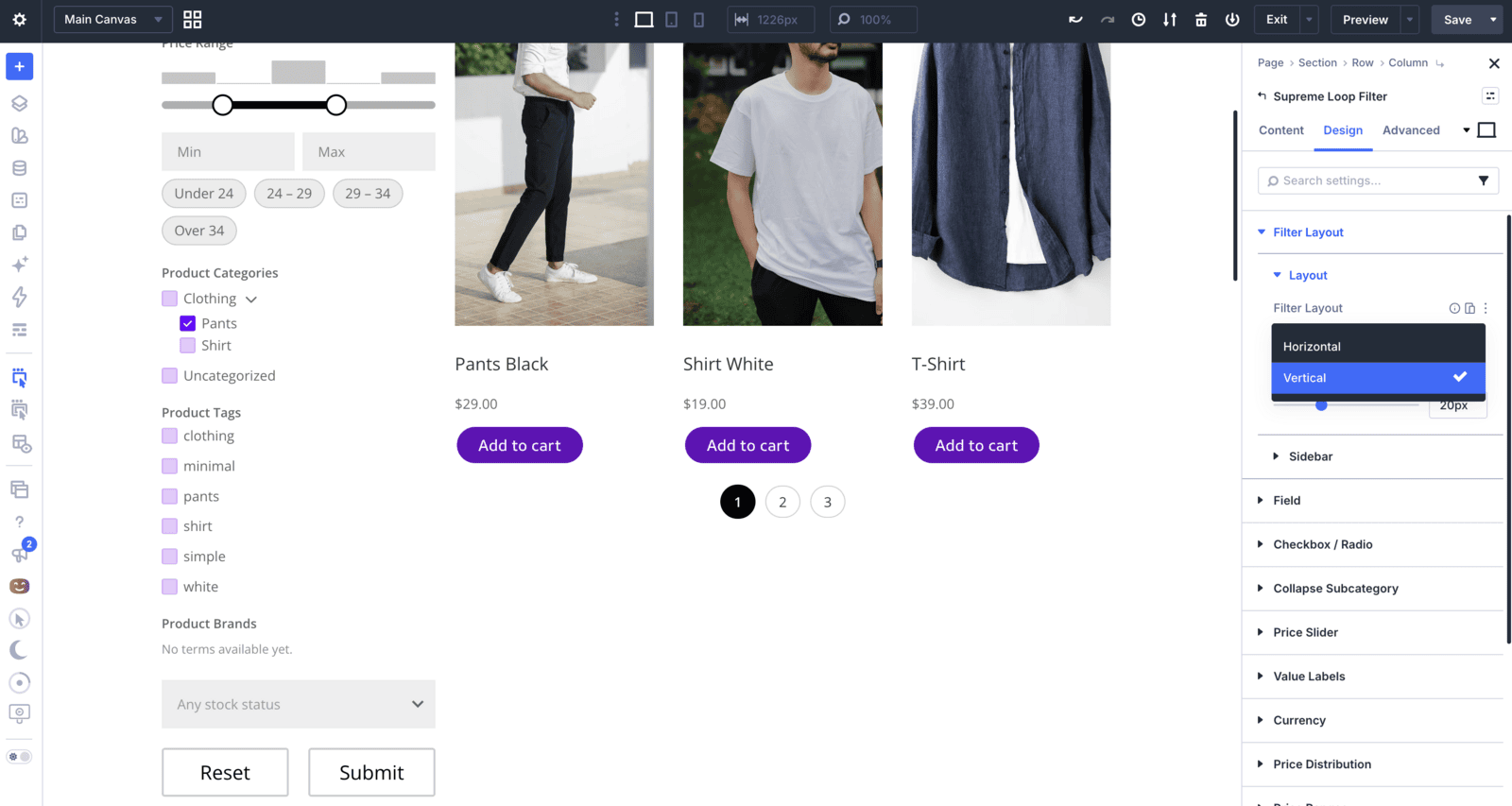
Supreme Loop Filter does not ask you to rebuild anything. When WooCommerce is active, the picker automatically adds three extra item types. Price works as input fields, a range slider, or a slider paired with input fields. Rating works as radio buttons, checkboxes or a dropdown. Stock Status covers in stock, out of stock and on backorder. Nest your existing product loop in Filter Content and the price slider, the star filter and the stock toggle sit on top of it, no separate loop required.
Filter Without Losing Your Place
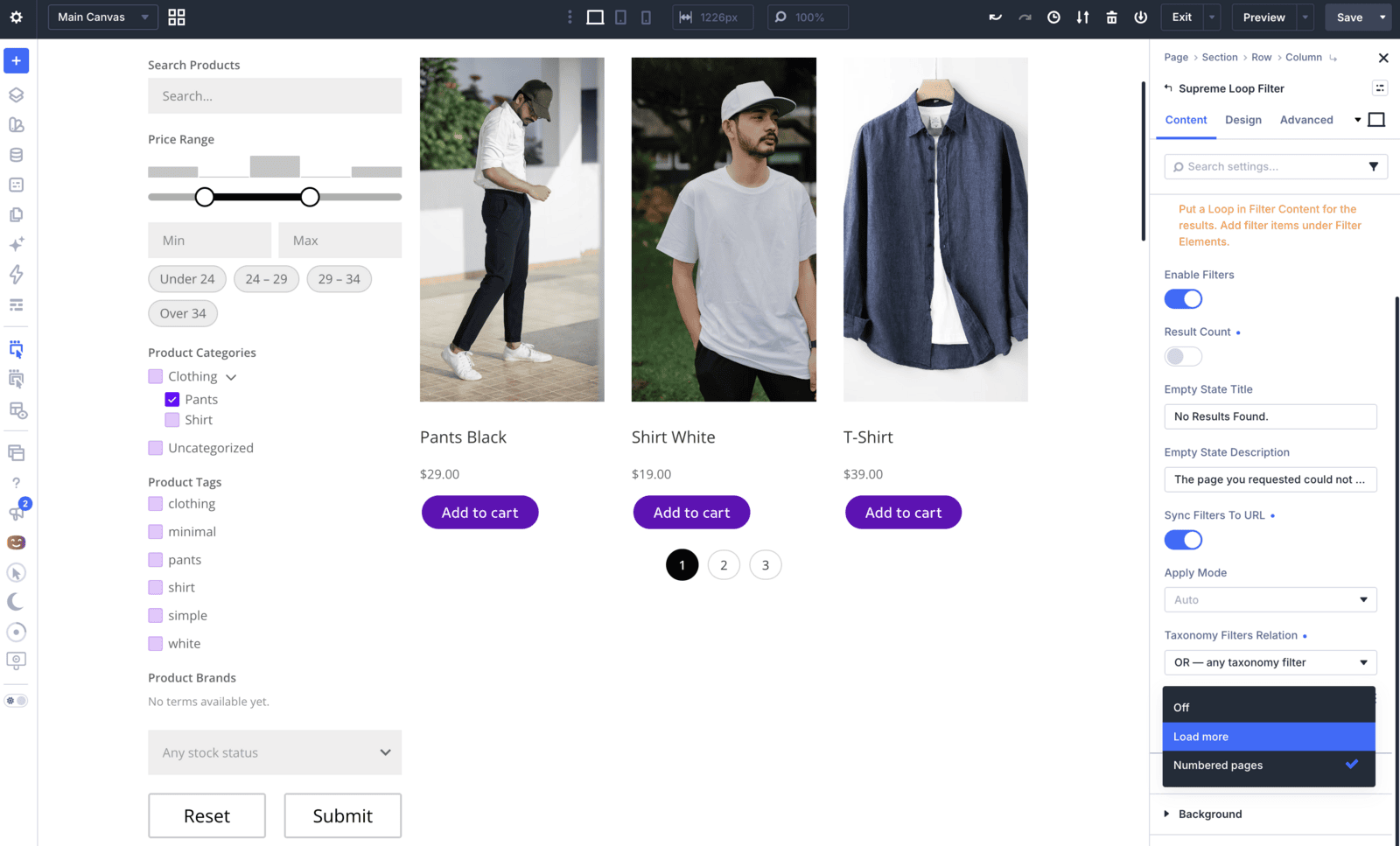
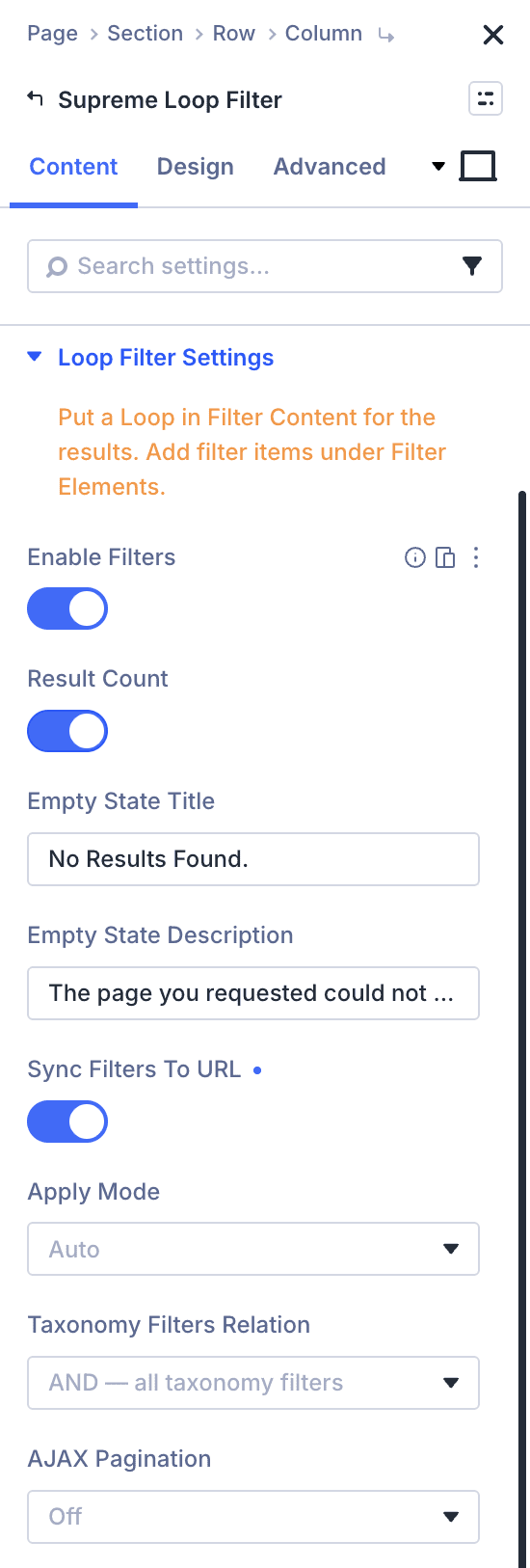
Neither Elegant Themes’ original announcement nor today’s build guide mentions AJAX behaviour, a load more button, or numbered pages anywhere. Supreme Loop Filter builds all three in. AJAX Pagination is a single setting under Loop Filter Settings, and you choose Off, Load more, or Numbered pages. Results update in place, with a loading spinner you can set to a ring, dots, pulse or bars while the new set arrives.
Apply Mode decides how eager the filter bar is. Leave it on Auto and results refresh the moment someone clicks a checkbox or types a search term. Switch it to Submit and nothing changes until they press a Submit button, which suits a filter bar with several fields where updating on every click would feel jumpy. Either way, nobody waits for a full page reload to see what matched.
Share the Exact Filtered View
Here is the one nobody thinks to ask for until they need it. Turn on Sync Filters to URL and the page address updates as visitors filter, so a search for “wireless” narrowed to In Stock and sorted by price becomes a link that reproduces exactly that view for the next person who opens it. Send it to a client, drop it in a product email, or let a visitor bookmark their own shortlist. It is off by default and neither of Elegant Themes’ own posts about their filter mentions anything like it.

Real Use Cases
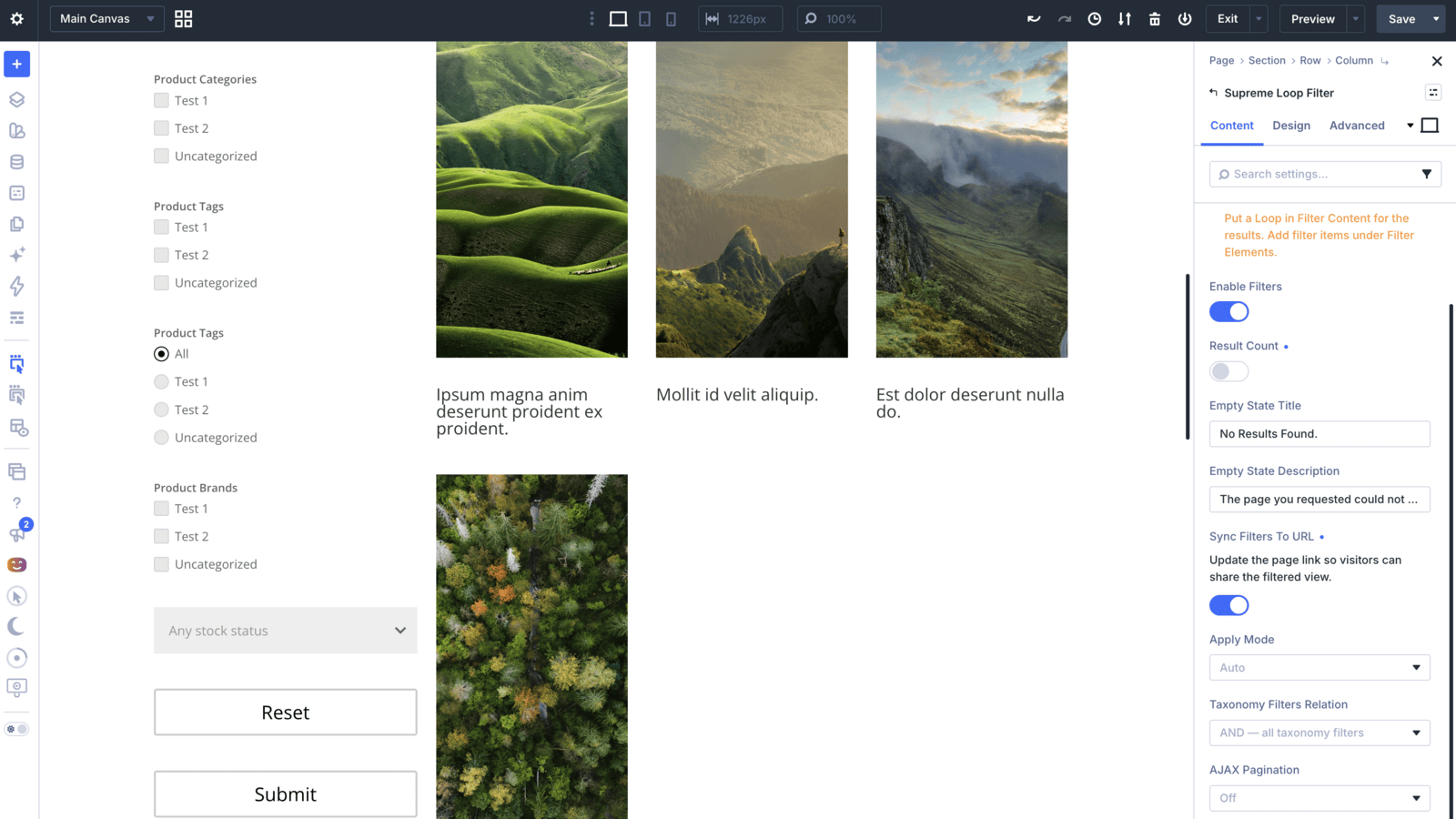
- Blog or custom post type directory. Search, categories and a date range sit above a Loop of posts, so a large archive stops feeling like scrolling forever.
- WooCommerce catalog. Price slider, rating and stock next to a product Loop, filtering the store you already built rather than a replacement for it.
- Sidebar shop filters. Switch Filter Layout to Vertical, pick a side, and turn on Sticky Sidebar so the filters stay in view while visitors scroll the results.
- Submit-to-apply forms. Several filters queued up behind one Submit button suit a directory where instant updates on every click would feel noisy.
The Settings That Change What You Can Build
Filter Layout switches the whole bar between Horizontal, filters above the results, and Vertical, a sidebar you can pin to the left or right and make sticky. Taxonomy Filters Relation decides how different taxonomy items combine, AND means every chosen group has to match, OR means any one of them can. Result Count and a configurable Empty State heading and description handle the two states every filter needs to explain, how many matches there are and what to show when there are none.
The full option list, every field type and every design group, is covered in detail in the Supreme Loop Filter documentation.
How to Enable It
- Go to Divi Supreme → Modules, turn Supreme Loop Filter on, and save.
- Reload the Divi 5 Visual Builder so the module appears in the inserter.
- Insert Supreme Loop Filter, then open Filter Content and nest a Loop with the modules that render each result.
- Keep or edit the starter items under Filter Elements, adding Price, Rating or Stock Status if WooCommerce is active.
- Turn on Sync Filters to URL if you want the filtered view to be shareable, and set AJAX Pagination if the results run long.
Why It’s Worth Using
A catalog or directory nobody can search is a catalog nobody finishes browsing. Supreme Loop Filter turns any Loop you have already built into something visitors can actually search, narrow and reorder, filters your WooCommerce shop the way a store should be filtered, updates without a full reload, and hands out a link for the exact view someone found. None of that needs a second plugin or a rebuilt loop.
Ready to Try It?
Update to the latest Divi Supreme Pro and turn on Supreme Loop Filter under Divi Supreme → Modules. It pairs naturally with Supreme Table when your results are structured data, and with Supreme Testimonials when visitors want to filter reviews by rating rather than just read them in order.
These are just a few of the many improvements. Your feedback is making Divi Supreme Pro for Divi 5 stronger every day. If you spot something, report it here!
Stay tuned for more updates, and please don’t hesitate to reach out if you have any questions or need assistance with anything related to Divi Supreme or Divi 5.
Best Regards,
Ken and the Divi Supreme Team