Hello Divi enthusiasts, Ken from Divi Supreme!
You have built the page. The hero looks sharp, the testimonials are in, and then you hit the part every project eventually gets to. Somewhere on this page there needs to be a table. Three plans side by side, a spec sheet, a menu, a comparison chart. That is usually where a good Divi build stalls. You either paste raw HTML into a Text module and lose every design control you have, or you install a separate table plugin with its own interface, its own styling system, and its own update cycle.
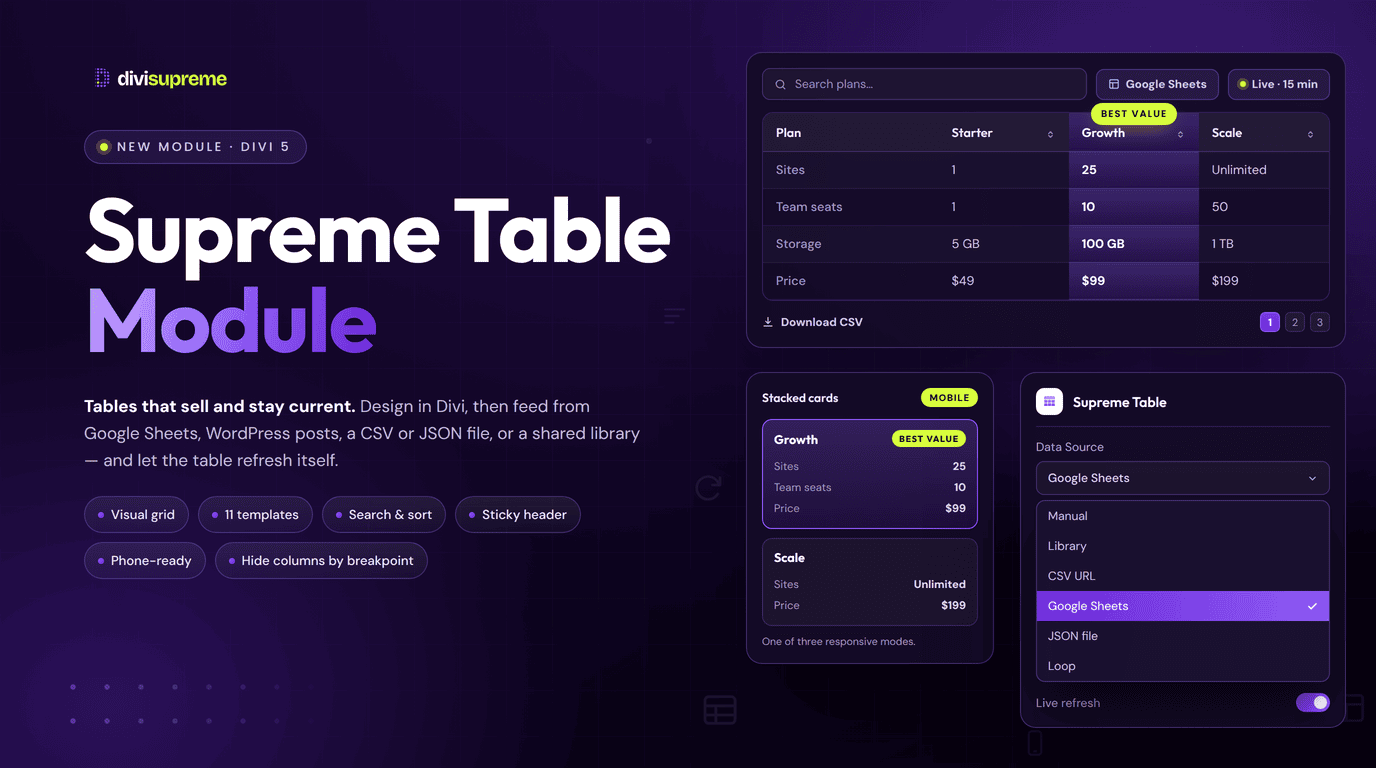
Our new Supreme Table module closes that gap. It is a proper table builder inside the Divi Builder. You edit it on the canvas, style it with Divi’s own design controls, and feed it from a saved library, a public spreadsheet, or your own posts. Now available in Divi Supreme Pro 5.0.63.
What Is Supreme Table?
Supreme Table is a Divi 5 module for pricing, comparison, and data tables. You add it like any other module and open the table editor, where you add rows and columns, merge or split cells, and choose what each cell holds.
Where it parts company with a static table is what fills it. A Supreme Table can be built by hand, pulled from a saved table in your library, loaded from a CSV file or a public Google Sheet, read from a public JSON file, or generated from your published WordPress posts. Same module, same design controls, six different ways to get the data in.

What Divi Gives You Today, and Where It Stops
Credit where it is due. Divi’s own Pricing Tables module is a tidy piece of work, and for three straightforward plans it does the job well. But look at what it actually holds. Each table takes a title, a subtitle, a currency, a frequency, a price, a feature list, and a button. That is a priced card, not a table.
The difference shows up the moment a visitor wants to compare. There is no row running across all three plans, so nobody can scan “storage” from left to right. There is nothing to sort. There is no way to search a long list. And there is certainly no way to point it at a spreadsheet and have next quarter’s numbers appear on their own.
For anything past priced cards, Divi ships no table module of its own. Elegant Themes’ module directory does list one, but as a commercial third-party product sold separately in the Divi Marketplace rather than something included with Divi. So until now the honest options were hand-written HTML in a Text module, or another plugin on the invoice.
Supreme Table is the third option. A real table, built in Divi, styled in Divi, and already covered by the licence you hold.
One Table, Six Ways to Fill It
Open Content → Data Source and choose how this table gets its rows.
- Manual means you build it yourself in the table editor. Best for pricing and comparison layouts where every cell is deliberate.
- Library reuses a table you have already saved. More on that in a moment.
- CSV URL points at a public HTTPS CSV file and lets the module lay it out.
- Google Sheets takes a share link to a public Sheet and turns it into a CSV export for you. Private Sheets will not load, so the Sheet does need to be shared publicly.
- JSON file reads a public JSON file holding a list of rows.
- Loop builds the table from published posts of any post type.
For the three remote sources you then decide how current you want the data. Save it once and the rows are stored in the table, or switch on Live refresh and the published table reloads from the URL every 5, 15, 30, or 60 minutes, whichever you pick. Five minutes is the floor, because the server caches each fetch. This is a schedule rather than a live feed, which for a price list or a spec sheet is exactly what you want. Tables hold up to 100 rows and 20 columns, which covers a comparison page comfortably.
The Loop option is the one that tends to surprise people. Choose a post type and Supreme Table builds the columns from your posts. Seven are available, covering title, date, author, excerpt, link, image, and status. Order by date, title, modified, menu order, ID, or random, filter by author or taxonomy, and set a count. Publish a new post and the table picks it up on its own. If you have used our Chart module to plot live data, this is the same idea applied to rows instead of graphs.


Change It Once, Update It Everywhere
Here is the part that saves the most time on a real site. Any table you build by hand can be saved to the Table library, which lives in your dashboard under Divi Supreme → Tables. Set a module’s data source to Library, pick the saved table, and it renders there.
The payoff is that the library table is the single source of truth. Edit it once and every module using it updates, wherever those modules happen to sit. A comparison table on the pricing page, the same table again halfway down a landing page, and once more in a blog post, all fed from one place. Change a price in the library and all three are correct.
The library is a proper editor in its own right, not just a storage shelf. Open a saved table in the dashboard and you get the same grid you would see on the canvas. Hover a row or column to select, drag, or insert. Shift-click or Ctrl-click cells to merge them (Cmd on a Mac). Pick a cell and change its type from the toolbar, with rich text opening a visual editor. There is a CSV import in the sidebar too, good for up to 20 columns and 100 rows, so a spreadsheet can become a styled table without ever opening the builder.
The sync runs both ways, and that is the part worth knowing before you lean on it. Edit a library table where it sits on a page in the Visual Builder, save the page, and the library copy updates to match. You are always working on the master rather than a detached copy, so there is no version of this where two pages quietly drift apart. The flip side is that a quick tweak on the pricing page changes that table everywhere it appears, which is exactly what you want once you are expecting it.
To keep track of where that lands, the Tables list carries a Used on column showing which pages pull each saved table, and a Find on pages tab that scans your layouts and lists every Supreme Table on the site alongside its data source. Genuinely useful on a site you inherited, or one you built eighteen months ago.
Anyone who has ever updated the same figure in four places, missed the fifth, and heard about it from a client will recognise why this is here.


Start From a Real Layout, Not an Empty Table
An empty table is a slow way to begin, so Supreme Table ships with eleven starter layouts. You get Pricing, Annual pricing, Feature comparison, Yes / no matrix, Compatibility, Pros / cons, Schedule, Spec sheet, Team, Menu, and Invoice lite. Applying one replaces the whole table, so there is a confirmation step before it does.
From there you shape the cells. Each one can be plain text, rich text for formatted copy, a button for a call to action, a badge for a yes, no, or “included” marker, or a shortcode when you need something else on the page to appear inside a cell. Rows can be marked as header, body, footer, or CTA rows, and you can give any row a hint that appears when a visitor points at it. Merge and split cells where a heading needs to span a group. Pin a column so it stays put while the rest scrolls sideways. Already have the data in a spreadsheet? Import a CSV straight into the table.
For comparison pages there are two controls worth knowing about. Highlight column picks out the plan you want people looking at, and Best value ribbon puts your own label across it. Both are styled in the Design tab alongside the header, body, footer, caption, links, buttons, and badges, so the table matches the page instead of fighting it. Finish the section with a scrolling strip of client logos underneath and the pricing page is basically done.


Let Visitors Find Their Own Row
A twelve-row table is a list. An eighty-row table is a search problem, and this is where a real table module earns its place.
- Search adds a box that filters rows as the visitor types. Put it above or below the table and align it left, centre, or right.
- Click to sort takes a column title from A to Z, then Z to A, then back to the original order. You can set which column sorts by default and in which direction.
- Pagination breaks long tables into pages of 5, 10, 25, or 50 rows, with control over where the pager sits.
- Export CSV puts a download button on the published page that hands the visitor the rows they have currently filtered, not the whole table.
- Empty state copy replaces the blank table a fruitless search leaves behind with a message you write yourself.
That export button is quietly one of the most useful things here. Someone comparing your specs against two competitors wants the numbers in a spreadsheet, and handing them over is a better first impression than making them copy cells by hand. Put a Contact Form Pro form under the table and the enquiry that follows lands somewhere you can actually find it.

Tables That Survive a Phone
Wide tables on small screens are where most table plugins quietly give up. Supreme Table gives you three answers and lets you pick per table.
- Scroll keeps the table intact and lets it move sideways. Pair it with a pinned column so the row labels stay visible.
- Stack turns every row into a card, with the column titles repeated as labels on each value. Long comparison tables become readable rather than cramped.
- Hide switches individual columns off on tablet or phone, so small screens get the three columns that matter instead of all nine.
There is a sticky header too, so column titles stay on screen as someone scrolls a long table, with an offset setting for sites that already have a fixed header. Zebra stripes and row hover round it off.

How to Enable It
- In your WordPress dashboard, go to Divi Supreme → Modules and make sure Table is switched on. The Table library only appears in the menu once it is.
- Edit a page with the Divi Builder and add the Supreme Table module.
- Open Content → Table and apply a starter layout, or set Content → Data Source to Library, CSV, Google Sheets, JSON, or Loop.
- Switch on search, sorting, pagination, and the export button under Content → Settings, then style everything in the Design tab.
Update to the newest release first, which you can check against the Divi Supreme Pro changelog. Every option is covered in detail in the Supreme Table documentation.
Why It’s Worth Using
Tables are where money gets decided. The pricing page, the comparison page, the spec sheet a buyer opens before they email you. Making those readable used to mean choosing between a table that matched your design and a table that actually worked.
Supreme Table removes the choice. You design it with the same controls as the rest of the page, so it looks like it belongs. You feed it from a spreadsheet or your own posts, so it stays right without anyone remembering to update it. Visitors can search it, sort it, and take the numbers away with them. And you do it without another plugin, another admin screen, or another licence to renew.
Ready to Build Your First Table?
Update to the latest Divi Supreme Pro, drop in the Supreme Table module, and start from the Pricing or Feature comparison layout. You will have a styled, searchable, mobile-ready comparison table before you would normally have finished fighting with the HTML.
These are just a few of the many improvements. Your feedback is making Divi Supreme Pro for Divi 5 stronger every day. If you spot something, report it here!
Stay tuned for more updates, and please don’t hesitate to reach out if you have any questions or need assistance with anything related to Divi Supreme or Divi 5.
Best Regards,
Ken and the Divi Supreme Team