Hello Divi enthusiasts, Ken from Divi Supreme!
You’ve seen them on every polished site: a smooth strip of client logos sliding by under a “trusted by” heading, a news bar tickering the latest offer, a slow column of feature marks scrolling beside a hero. They make a page feel alive and current. And building one in Divi has meant hunting for a plugin, wrestling with a slider that isn’t really meant for it, or dropping in a script and hoping it survives the next update.
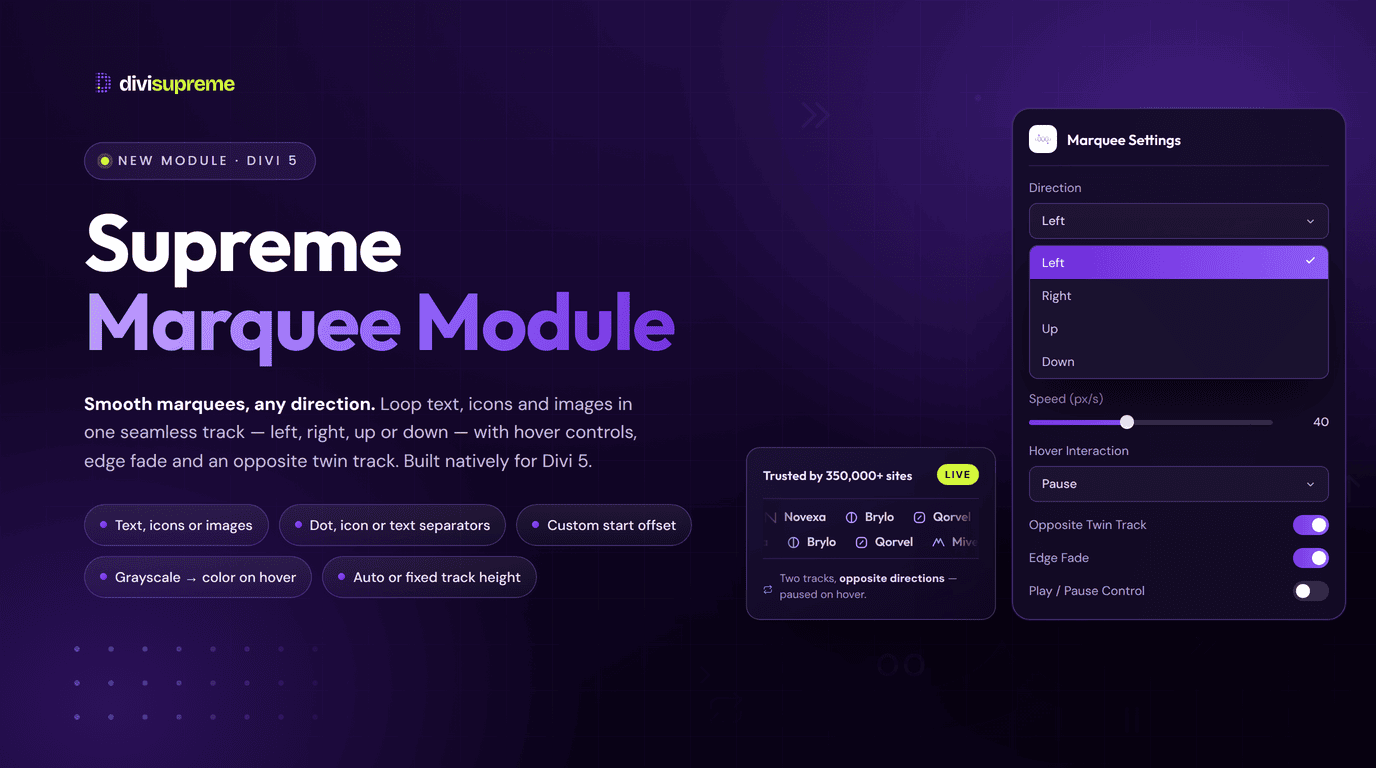
Our new Marquee module puts that whole effect natively in the Divi builder: an infinite ticker of icons, images, and text that loops forever, in any direction, with the polish (edge fades, hover pause, reduced-motion support) you’d otherwise hand-code. Now available in Divi Supreme Pro 5.0.53.
What Is the Marquee Module?
In plain terms: the Marquee module is a continuously scrolling strip you fill with your own items, each one an image, a piece of text, or text with an icon: and it loops seamlessly with no visible seam. Point it left, right, up, or down, set the speed in pixels per second, and it just runs.
What makes it more than a novelty is the control. You decide how items are separated (nothing, a dot, an icon, or your own custom text), what happens when someone hovers (pause, reverse, or speed up), and how it behaves at the edges and off-screen. It can even loop your latest post titles or featured images automatically. The result is a single module that covers three quite different jobs (a logo band, a news ticker, and a vertical feature rail) without a line of code.
Real Use Cases: Where This Shines
The same module, configured three ways, gives you three completely different banners:
- Trusted-by logo strip. Set two opposite rows with Opposite Twin Track, drop in your client or partner logos (image only), and turn on Colour on Hover so they sit grayscale and bloom into colour as visitors mouse over. Add an edge fade and you get a dense, premium “trusted by” band, with no repeating your logos by hand to fill the width.
- Announcement ticker. Use text items with a custom-text separator (a “·” between each), add a Play / Pause control, and you’ve got a polite, readable news bar (“Free shipping over $50 · New spring drop · Members save 20% · Ships today · Easy returns”) that visitors can stop if they want to read it.
- Icon marks that match your brand. Because a text item can carry an icon, anything in the Icon Libraries can ride along in the strip.
- Vertical feature rail. Point it up, give it a fixed custom height, and scroll icon-and-text marks (“Fast setup · Loop-ready · Hover pause · Edge fade · Reduced motion”) with an icon separator between them. It works as a slim hero sidebar rather than a full-width strip.
- Live content loop. Point the text items at Post Title, or images at Featured Image, and the marquee fills itself from your latest posts, a self-updating “recently published” strip. Pair it with the Chart module when the homepage needs numbers as well as movement.
- Scrolling testimonial marks or badges. Award badges, payment icons, or short quotes that keep moving to draw the eye without shouting.


Every Setting, Explained
Motion
This is the heart of the module, and it is how the strip moves:
- Direction: Left, Right, Up, or Down. Horizontal for logo bands and tickers, vertical for rails.
- Speed (px/s): set the exact scroll speed in pixels per second, so it’s consistent regardless of how many items you add.
- Hover Interaction: choose what happens on hover: None, Pause, Reverse, or Speed Up, with a Hover Speed Multiplier to dial in the reverse/speed-up amount.
- Start Offset (%): begin the loop part-way along, handy when you’re placing two marquees near each other and don’t want them in lockstep.
- Opposite Twin Track: add a second row that scrolls the opposite way. This is what gives a logo band that dense, two-lane look from a single module.

Items
Each item is one of three things, and only one: text, text with an icon (turn on Use Icon), or an image. You can’t mix an icon and an image on the same item, which keeps each strip clean. From there:
- Separator: put None, a Dot, an Icon, or your own Custom Text between items, with control over separator colour and size.
- Loop from content: set text items to pull your Post Title, or image items to pull the Featured Image, for a marquee that updates itself.
- Spacing and alignment: tune Item Gap, the Media / Text Gap within an item, and Item Alignment so everything lines up how you want.
Image
When your items are images, you get proper image controls, the difference between a tidy logo strip and a messy one:
- Image Filter: None, Colour on Hover (grayscale that turns colour on hover, the classic logo-wall effect), Grayscale on Hover, or Always Grayscale.
- Image Max Height and Image Hover Scale: set a parent default and override it on any individual child, so mismatched logo sizes still line up and can gently scale on hover.
- Image Size and Image Alt Text: keep things sharp and accessible.

Polish
The finishing touches that make it feel considered rather than bolted on:
- Edge Fade and Edge Fade Size: soften the left/right (or top/bottom) edges so items fade in and out instead of hard-cutting at the container.
- Play / Pause Control: show a visitor-facing button to stop and start the scroll, perfect for an announcement bar.
- Pause When Offscreen: the marquee stops animating when it’s not in view, saving performance and battery.
- Reduced Motion: set to Auto and the module respects a visitor’s “reduce motion” system setting, so it stays accessible by default.
How to Enable It
- Update to the latest Divi Supreme Pro so you have the Marquee module.
- In the Visual Builder, add a new module and search for Supreme Marquee. Drop it wherever you want the strip: a full-width row for a logo band or ticker, a narrow column for a vertical rail.
- Add your items (image, text, or text + icon), set the Direction and Speed under Motion, then style the separators, image filter, edge fade, and controls to taste.
Every option is documented in full: Supreme Marquee module.

Why It’s Worth Using
A moving strip is one of those small details that quietly signals a site is current and well made, the same effect you admire on GitHub, Stripe, and every modern SaaS landing page. The Marquee module gives you that natively in Divi, with the accessibility and performance touches (reduced-motion support, pause when offscreen, hover pause) that a quick script never bothers with. One module, three very different banners, and no plugin roulette or custom code to maintain. Best of all, it’s already included in Divi Supreme Pro.
Ready to Try It?
Update to the latest Divi Supreme Pro, add the Supreme Marquee module, and give your pages a scrolling strip of logos, text, or icons that loops forever, exactly the way you want it.
These are just a few of the many improvements. Your feedback is making Divi Supreme Pro for Divi 5 stronger every day. If you spot something, report it here!
Stay tuned for more updates, and please don’t hesitate to reach out if you have any questions or need assistance with anything related to Divi Supreme or Divi 5.
Best Regards,
Ken and the Divi Supreme Team