Hello Divi enthusiasts, Ken from Divi Supreme!
There’s a small, awkward moment on almost every site: the half-second before the page paints, where a visitor sees a flash of nothing, a blank screen, then everything snapping into place at once. On a carefully built Divi site, that first impression is the one thing you never got to design. Most of us just live with it, or paste in a loading script and hope it dismisses cleanly.
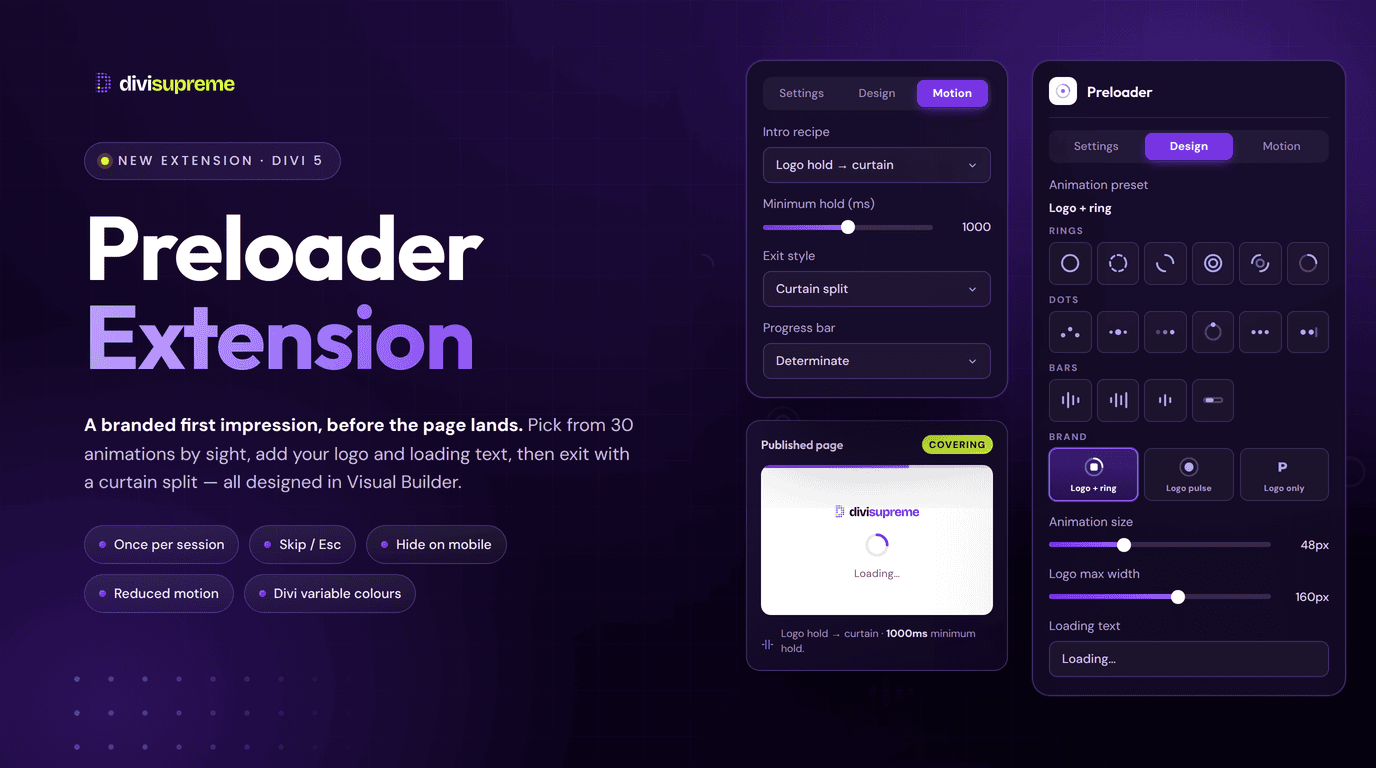
Our new Preloader Extension gives you that moment back. It puts a branded loading screen in front of your page (your logo, your colours, a tasteful animation) and then bows out with a smooth exit as the real page lands. You design the whole thing in the Visual Builder, picking from 30 ready-made animations by sight, and it plays on the live page load. Now available in Divi Supreme Pro 5.0.55.
What Is the Preloader Extension?
In plain terms: the Preloader is a full-screen overlay that shows while your page is loading, then gets out of the way. You build and style it inside the Visual Builder, using the same Divi colours, fonts, and breakpoints you already know, with a live canvas preview so you can see exactly what visitors will get. When the page actually loads on the frontend, the overlay plays your chosen animation, holds for a beat, and exits.
The heart of it is a live preset grid: 30 CSS and SVG animations you pick by eye rather than guessing from a dropdown. Rings, dots, bars, and three brand presets built around your logo. Add your logo (with or without a spinner around it), a line of loading text, and an exit style, and you’ve got a polished, on-brand loading moment in a couple of minutes. And crucially, there’s a hard failsafe: the overlay always dismisses, so a slow asset can never trap a visitor behind a spinner.
Real Use Cases: Where This Shines
The extension ships with three brand presets and three intro recipes, so the common looks are a click away:
- Logo hold, then curtain. Show your logo centred on the overlay, hold it for a set minimum, then split the screen apart like a curtain to reveal the page. The classic “considered brand” open, and a great fit for agency and portfolio homepages.
- Wordmark above a spinner. Your wordmark sitting above a small, quiet spinner, then a soft fade out. Understated and fast, ideal when you want presence without drama.
- Progress, then fade. A thin progress bar tracks along the top edge, then the overlay fades as the page settles. Reassuring on content-heavy or media-rich pages where a load actually takes a moment.
- Logo-only splash. Just the logo, no spinner: the cleanest option when the animation would be one thing too many.
- Homepage-only first impression. Run the preloader on the homepage only, so the very first visit feels deliberate while the rest of the site stays instant. (If the page behind it is not ready to be seen at all, that is a job for Maintenance & Coming Soon instead.)

Every Setting, Explained
Presets and brand
This is where most of the design happens, and it’s built to be visual:
- Live preset grid: 30 animations laid out as thumbnails you pick by sight, from spinning rings (including dashed and dual-ring) to bouncing and pulsing dots and thin animated bars. No guessing from names.
- Three brand presets: Logo + ring (your logo inside a spinning ring), Logo pulse (a soft scale-pulse on the logo), and Logo only (a clean logo splash).
- Logo and animation size: set your logo max width and the animation size independently, so the spinner frames the logo rather than fighting it.
- Loading text: add an optional line of text (“Loading…”, or anything on-brand) beneath the animation.
- Divi variable colours: pull straight from your Divi colour variables, with a gradient background option, so the overlay matches your palette and updates with it.

Intro recipes and exits
How the overlay opens, holds, and leaves:
- Intro recipe: pick a ready-made flow such as Logo hold → curtain, wordmark + spinner, or progress → fade. Each wires up the intro, the hold, and the exit for you.
- Minimum hold: set how long the overlay stays (in milliseconds) even on a fast load, so a quick page doesn’t flash the preloader and vanish.
- Exit style: choose how it leaves, whether fade, fade up, wipe, scale, or curtain split. The same styles double as page-to-page covers, so internal navigation gets the same smooth transition.
- Progress bar: show a determinate progress bar along the top edge for recipes that call for it.

Where it shows
Full control over where the preloader appears, so it never gets in the way of the pages that matter:
- Display conditions: run it across the entire site, on specific pages (include), everywhere except (exclude) chosen pages, per page, or homepage only.
- WooCommerce stays clear: cart, checkout, and account pages are kept free of the overlay automatically, so nothing sits between a shopper and buying.
- Hide when logged in: skip the preloader for logged-in users, so you and your editors aren’t waiting through it while you work.
The thoughtful details
The small touches that keep it polite and accessible:
- Once per session: show it on the first visit and stay out of the way for the rest of the session.
- Skip / Esc: let visitors dismiss the overlay immediately with a click or the
Esckey. - Hide on mobile: turn the preloader off on phones where you want the fastest possible paint.
- Reduced motion: respect a visitor’s “reduce motion” system setting, so the experience stays comfortable and accessible by default.
- No-JavaScript safe: visitors without JavaScript never see the overlay at all, so the page is never hidden behind a script that can’t run.
How to Enable It
- Update to the latest Divi Supreme Pro, then in your WordPress dashboard go to Divi Supreme → Extensions and switch on Preloader.
- Open the Visual Builder and find the Preloader settings. Pick an animation from the preset grid, add your logo and loading text, and choose an intro recipe and exit style, watching the live canvas preview as you go.
- Set your display conditions (entire site, include, exclude, per page, or homepage only) and the details you want (once per session, hide on mobile, reduced motion), then save. It plays on the next live page load.
The docs walk through every option in detail: Preloader extension.

Why It’s Worth Using
That first moment of a page load is a real part of your brand, and until now it’s been the one bit of a Divi site you couldn’t touch. The Preloader turns it into something deliberate (your logo, your colours, a considered animation) with the guard rails that matter: a hard failsafe so it always dismisses, WooCommerce pages kept clear, reduced-motion and no-JavaScript handled for you, and a “once per session” option so it never becomes annoying. You design it visually in the builder you already know, so there’s almost no learning curve. And once the overlay has bowed out, Page Tour can pick up where it left off and show a first-time visitor around. Best of all, it’s already included in Divi Supreme Pro.
Ready to Try It?
Update to the latest Divi Supreme Pro, switch on the Preloader extension, and give your pages a branded first impression that lands cleanly and gets out of the way.
These are just a few of the many improvements, and your feedback is making Divi Supreme Pro for Divi 5 stronger every day. If you spot something, report it here!
Stay tuned for more updates, and please don’t hesitate to reach out if you have any questions or need assistance with anything related to Divi Supreme or Divi 5.
Best Regards,
Ken and the Divi Supreme Team