

Hello Divi enthusiasts, Ken from Divi Supreme!
Your navigation is the busiest part of your site. It is the one element on every page, and it is where a visitor quietly decides whether to go deeper or give up. A plain dropdown rarely does that job justice, especially when you have a lot to link to: product ranges, service pages, a resources hub, a shop.
That is exactly what Supreme Mega Menu is built for. It lets you design full, multi-column mega menus right inside the Divi Builder, dropping real content into your dropdowns instead of a flat list of links. And today it reaches a milestone we have been working towards for months: Supreme Mega Menu is officially out of beta. Now available in Supreme Mega Menu 2.0.6, rebuilt native for Divi 5 and still fully compatible with Divi 4.
What Is Supreme Mega Menu?
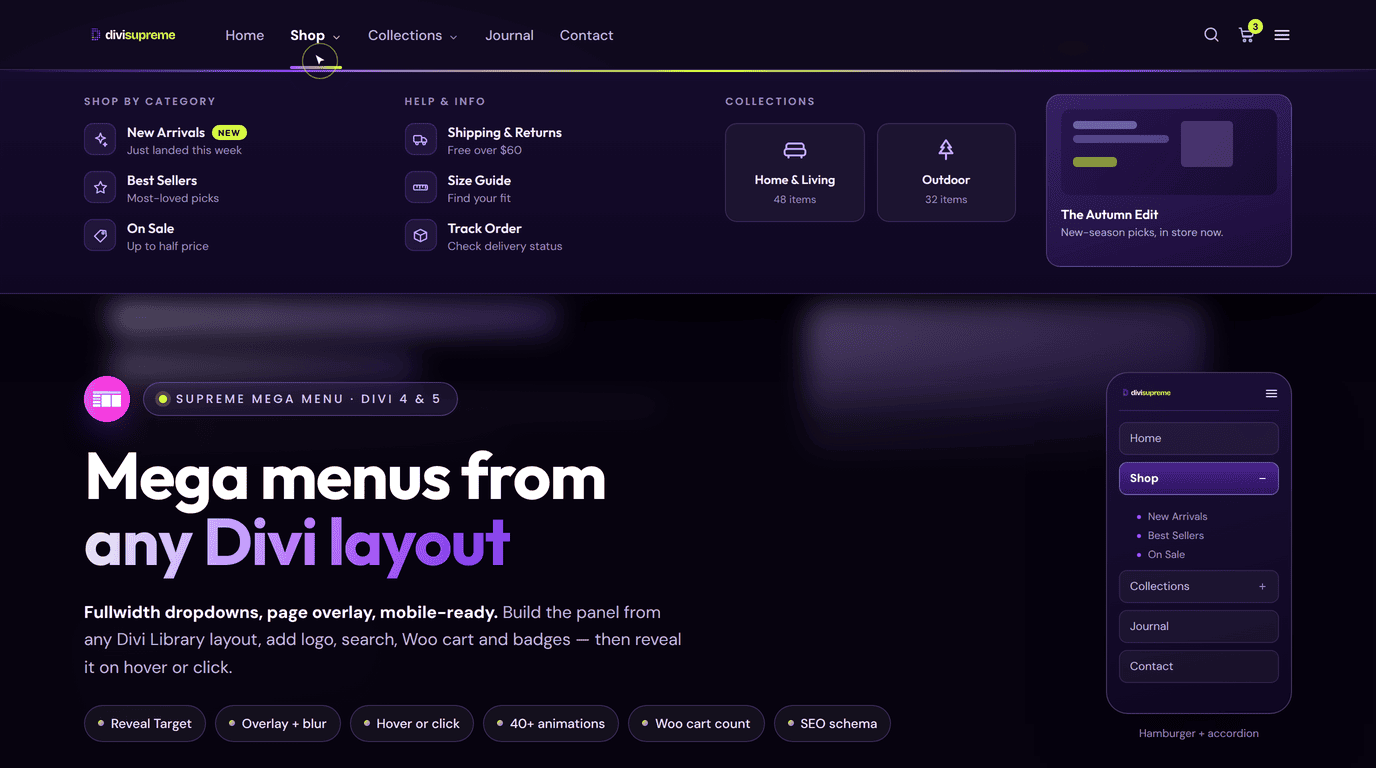
Supreme Mega Menu turns your Divi header menu into a canvas. Instead of a standard dropdown, each menu item can open a wide panel that you build and style visually: columns of links, images, icons, a search field, a WooCommerce cart, or an entire saved Divi Library layout.
If you have ever opened the navigation on a large SaaS or e-commerce site and seen a tidy grid of categories, featured items, and images unfold beneath a single menu word, that is a mega menu. Supreme Mega Menu brings that same behaviour to Divi, without custom code, and with every colour, spacing, and animation exposed in the builder you already know.
Now Officially Out of Beta, and Native to Divi 5
When Divi 5 arrived, we did not bolt a compatibility patch onto the old plugin. We rebuilt Supreme Mega Menu native to Divi 5, so it behaves like a first-class Divi 5 module rather than a legacy add-on running in a backward-compatibility layer. The 2.0 beta cycle was about getting that rebuild right, and 2.0.6 is the current stable public release.
Here is what that milestone means for you:
- A properly stable release. The Divi 5 rebuild has been through a full beta cycle (2.0.0 through 2.0.4), with fixes landing for Theme Builder rendering, dropdown hover in the builder, width rules, and script loading. Since coming out of beta we have kept polishing: 2.0.6 fixes Library layouts appearing blank in the Visual Builder, the Divi Layout dropdown not listing your saved layouts, and hamburger and close icon styling bleeding into each other.
- One plugin, both Divi generations. Supreme Mega Menu 2.0.6 supports Divi 5 and Divi 4, so you can update with confidence whether or not you have moved a site over yet.
- A smoother building experience. Dropdowns now stay open while you hover over them in the builder, previews behave, and the whole thing feels native to the Divi 5 Visual Builder.
Real Use Cases: Where This Shines
- A shop mega menu that sells. Lay out product categories in columns, add a featured image or two, and drop your cart straight into the panel so shoppers can check the basket without leaving the menu.
- A resources hub. Give your blog, docs, guides, and case studies their own tidy grid, so visitors can see everything you offer at a glance instead of hunting through a single-column list.
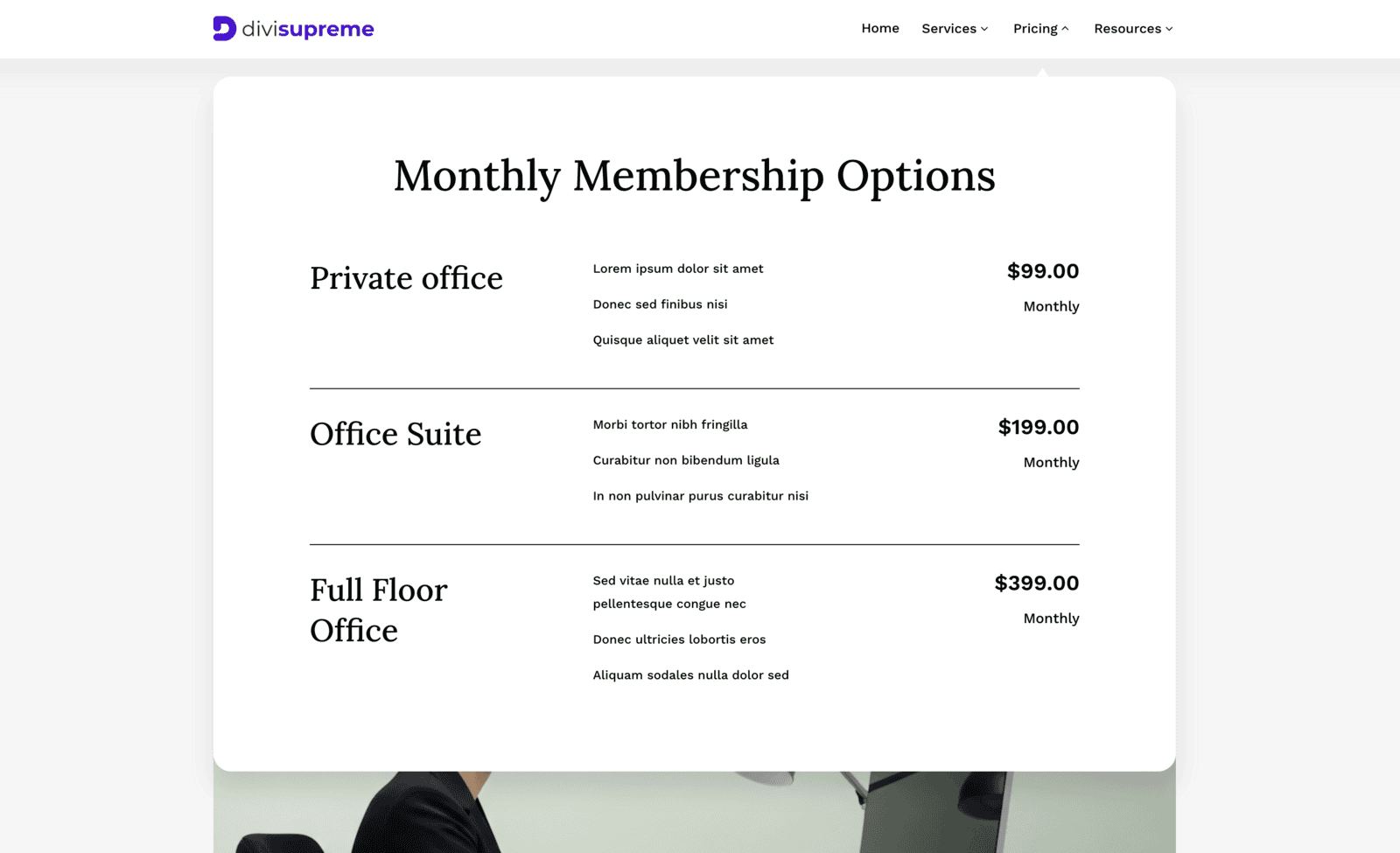
- A design-led header. Reuse a saved Divi Library layout as the dropdown itself, so your mega menu carries the same buttons, blurbs, and styling as the rest of the site with zero rebuilding. Pair it with Dark Mode and the header repaints itself, logo swap included, when a visitor switches scheme.
- A trigger for on-page content. Use a menu item to reveal a hidden section or row elsewhere on the page (a booking form, a promo banner), then close it again when the visitor clicks away.
- A genuinely usable mobile menu. Collapse those same dropdowns into clean accordions on phones, so a big desktop mega menu does not turn into an unusable wall on a small screen. A tidy set of icons from the Icon Libraries makes those collapsed rows much easier to scan.
Every Setting, Explained
Build dropdowns from anything, including Divi Library
The heart of Supreme Mega Menu is the freedom to decide what a dropdown actually contains. Each menu item can hold a WordPress menu, custom content built with Divi rows and modules, or a saved Divi Library layout.
The Library option is where this release really shines. Saved Sections and Rows now appear correctly in the Library picker, and best of all they render live inside the Divi Visual Builder, not just on the front end. That means you can see your real dropdown design as you work, edit it in place, and trust that what you build is what your visitors will see.
Reveal Target: menus that trigger on-page content
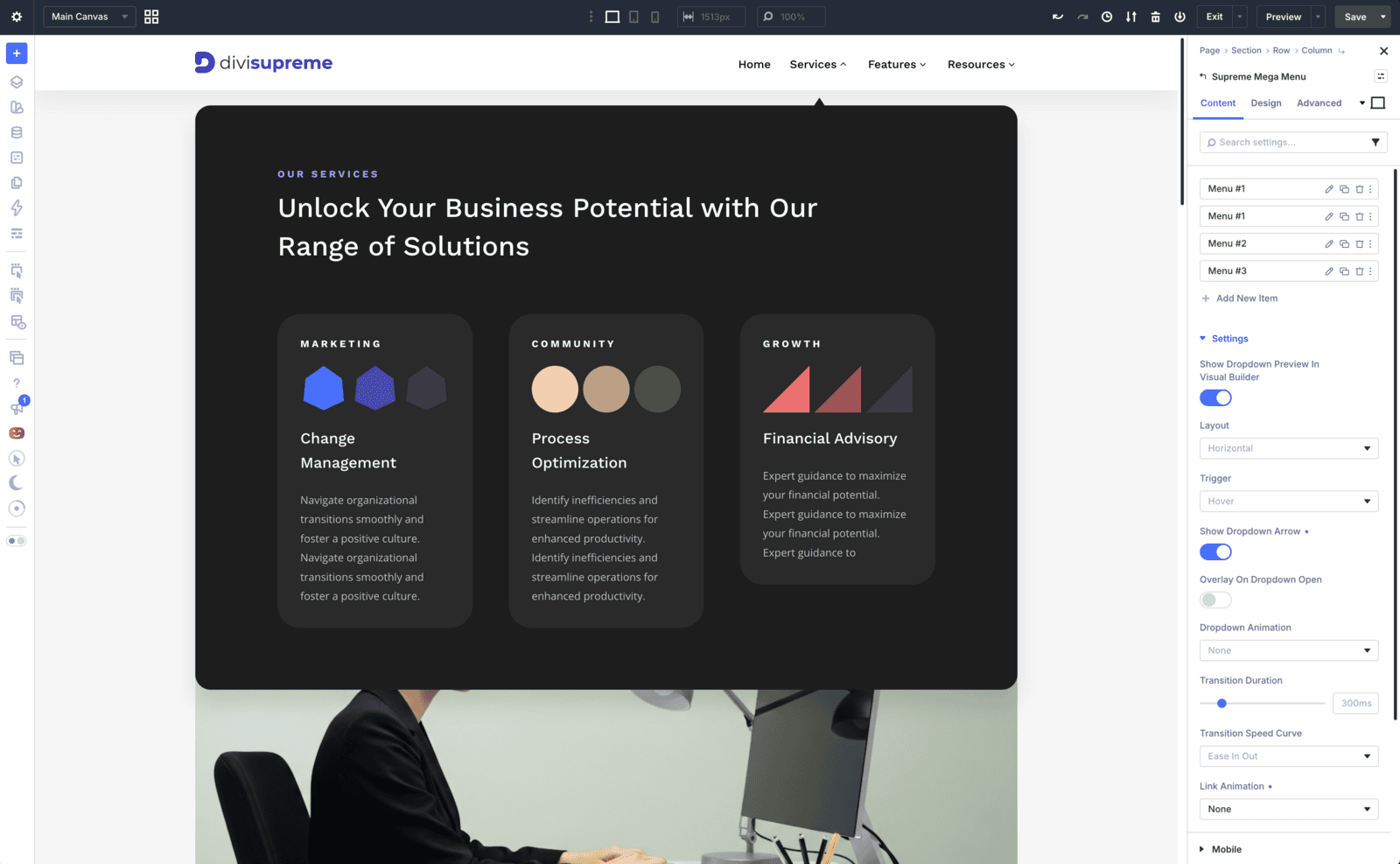
New in this cycle is Reveal Target, which lets a menu item reveal another element on the page rather than opening a dropdown. Point it at a section or row by its Target CSS ID, choose a Default State (hidden or visible), pick a Reveal Animation, and optionally have it close when the visitor clicks outside. It is a neat way to tie navigation to a form, a panel, or a promo without a separate popup plugin.
Overlay on Dropdown Open
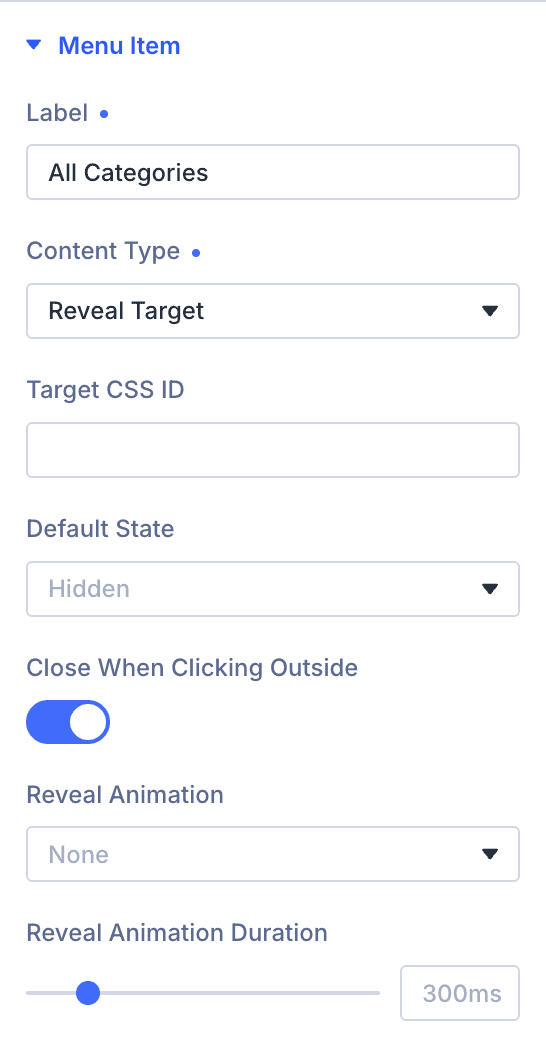
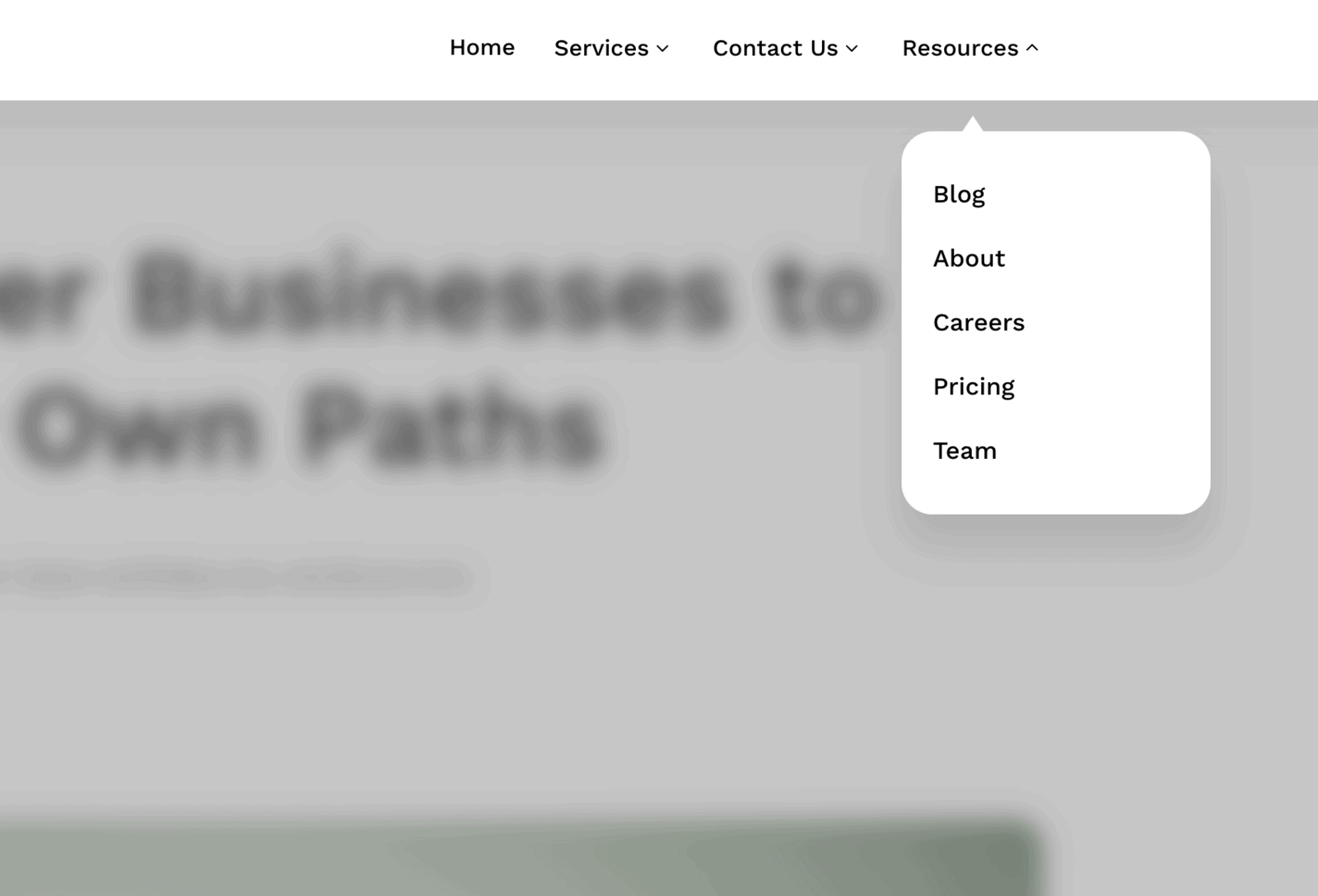
To keep focus on an open mega dropdown, you can dim the rest of the page behind it. Overlay on Dropdown Open adds that backdrop, with colour control and an Overlay Blur option for a soft, modern frosted effect. There is also a setting to keep your header visible above the overlay, so the navigation never disappears while the panel is open.
Mobile and accordion behaviour
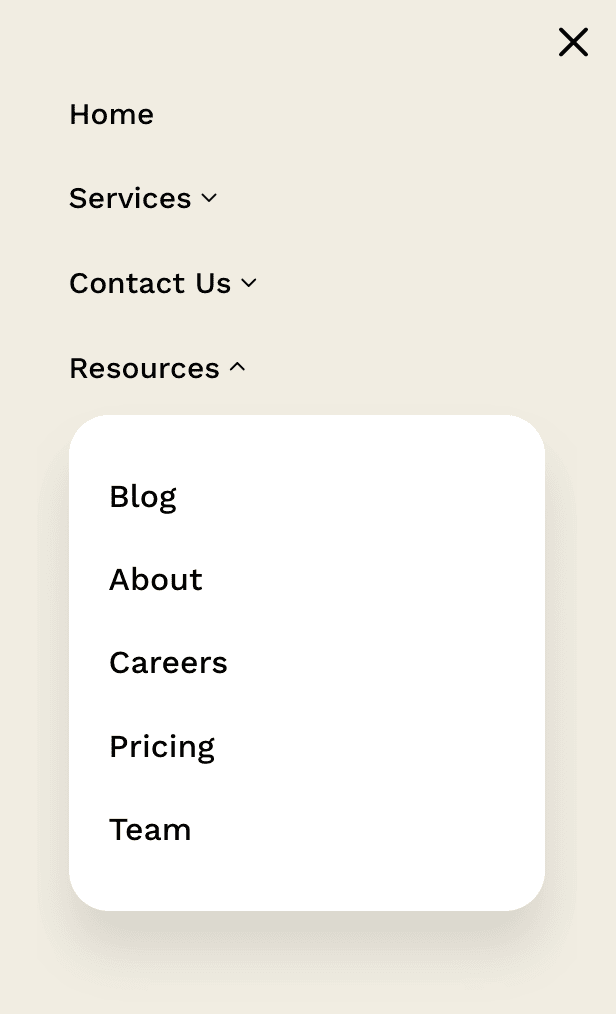
A mega menu is only as good as its mobile version. Dropdowns can collapse into accordions on phones and tablets, so visitors tap to expand each section instead of fighting a giant panel. Same-page anchor links behave too: tapping one scrolls to the target section and automatically closes the open dropdown.
The thoughtful details
- WPML compatibility. Multilingual menus are supported, so translated sites get their mega menus too.
- Native width units. The custom dropdown width accepts native units, giving you precise control over how wide each panel sits.
- Icons and images, placed how you want. Add icons or images to menu items with Top and Bottom placement options, and they now display and style correctly in the Theme Builder.
- Search and cart, built in. Drop a search field or a WooCommerce cart with a live count straight into the menu.
How to Enable It
- Make sure Supreme Mega Menu is installed and activated, and update to 2.0.6 so you are on the stable Divi 5 native release.
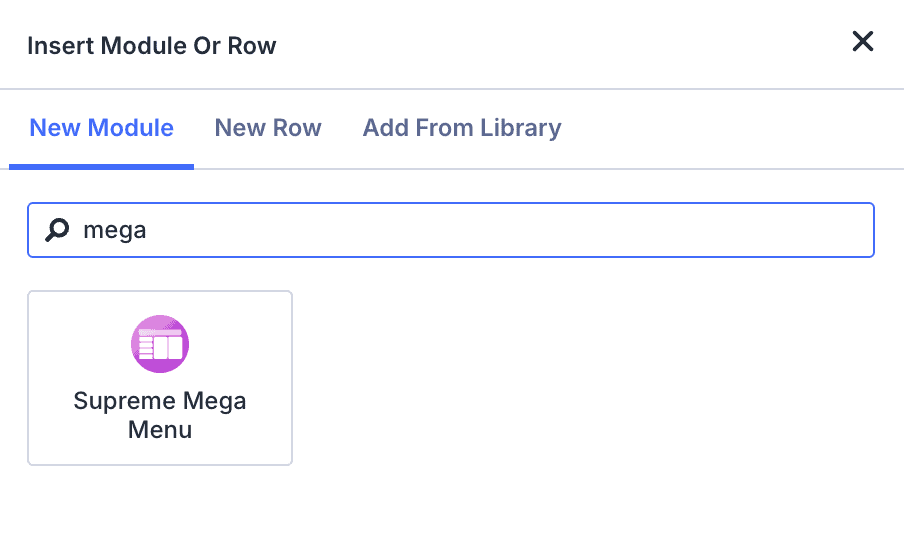
- In the Divi Builder, add the Supreme Mega Menu module to your header (or your Theme Builder header layout).
- For each menu item, choose what the dropdown holds: a WordPress menu, custom Divi content, or a saved Divi Library layout, then style it in the Design tab.
The docs cover every setting in detail: Supreme Mega Menu for Divi 5. The full list of what shipped is in the changelog.
Why It’s Worth Using
Your menu is prime real estate, and a mega menu is how you make the most of it: more of your site visible in one confident gesture, laid out the way you would design any other section. With this release you get that power on a properly stable, Divi 5 native footing, with your real dropdown designs rendering live as you build. It is the difference between a navigation that hides your best pages and one that puts them front and centre.
Ready to Try It?
Update to Supreme Mega Menu 2.0.6, add the module to your header, and start building dropdowns that actually show off everything your site has to offer.
These are just a few of the many improvements, and your feedback is what makes Supreme Mega Menu stronger every day. If you spot something, report it here!
Stay tuned for more updates, and please don’t hesitate to reach out if you have any questions or need assistance with anything related to Supreme Mega Menu or Divi 5.
Best Regards, Ken and the Divi Supreme Team
0 Comments